How to Connect to WhoVPN on Linux Using SSTP
Learn how to connect to WhoVPN via SSTP on Ubuntu, Linux Mint, Pop!_OS, and other Debian-based systems using a terminal script or NetworkManager.

Paul Jackson
Technology editor
This guide explains how to connect to WhoVPN on Ubuntu, Linux Mint, Pop! _OS, and other Debian-based Linux distributions using SSTP.
There are two recommended ways to set up an SSTP VPN connection on Linux. You can use the WhoVPN SSTP connection script from the terminal or configure the connection through NetworkManager.
Both methods are preferable to configuring sstpc, PPP routing, and DNS manually.
In this guide, you’ll learn how to:
- install the required SSTP packages;
- get your WhoVPN SSTP connection details;
- connect using the WhoVPN SSTP script;
- configure SSTP through NetworkManager;
- disconnect from the VPN;
- verify that your connection is working correctly.
Requirements
Before you begin, make sure you have:
- an active WhoVPN subscription;
- your WhoVPN SSTP server address;
- your SSTP username and password;
- a Linux account with
sudoprivileges; - an active Internet connection.
If you’ve lost the email containing your WhoVPN connection details, you can recover your subscription information using the WhoVPN Recovery page:
Enter the email address associated with your active WhoVPN subscription. A new email containing your available connection details will be sent to that address.
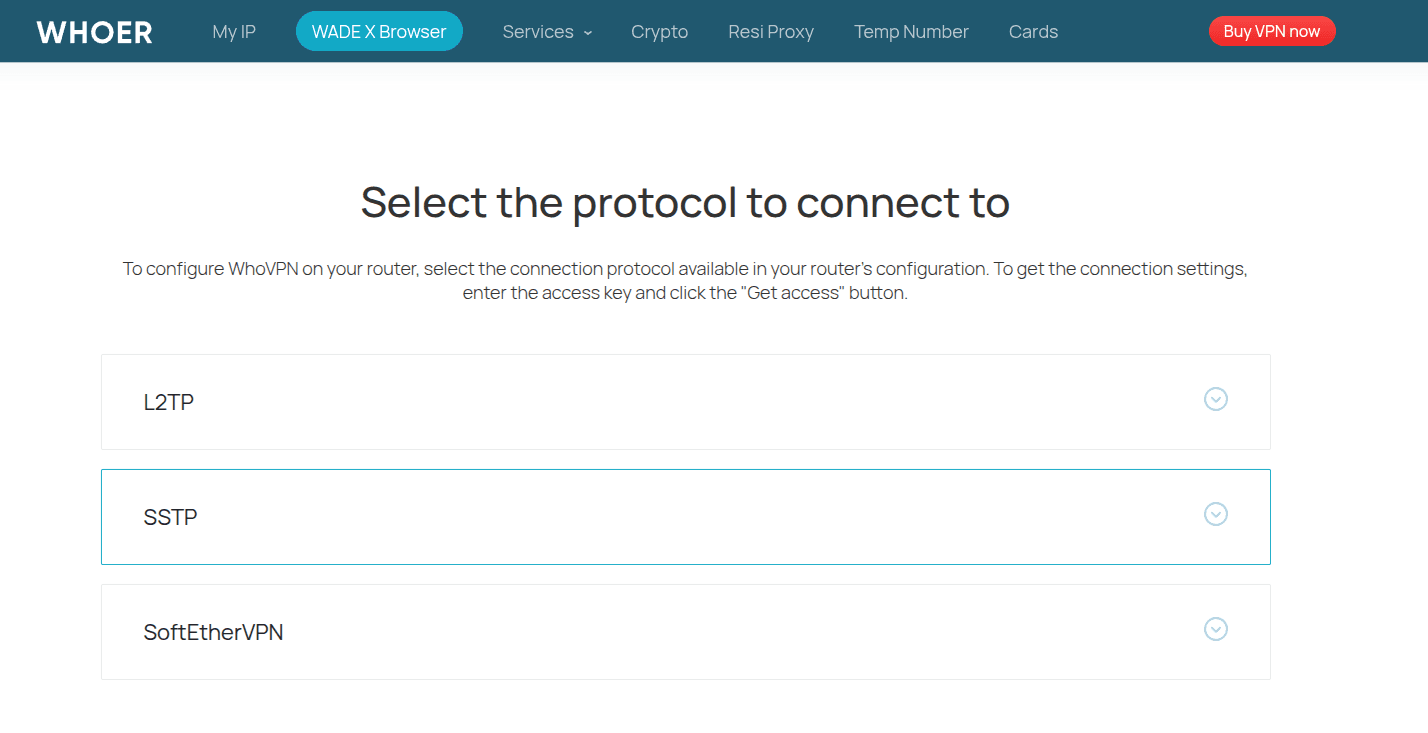
You can also check the available WhoVPN configuration data from the VPN configuration page:
https://whoer.net/download/vpn-router
Select the required VPN protocol and server location, then download the corresponding configuration files or use the connection details provided on the page.
Install the Required Packages
First, update your package index:
sudo apt update
Install the SSTP client:
sudo apt install sstp-client
If you plan to connect using NetworkManager, install the SSTP plugins as well:
sudo apt install network-manager-sstp network-manager-sstp-gnome
The first package adds SSTP support to NetworkManager, while network-manager-sstp-gnome provides integration with graphical network settings on GNOME-based desktop environments.
Depending on your Linux distribution and desktop environment, some of these packages may already be installed.
Connect Using the WhoVPN SSTP Script
For terminal connections, you can use the WhoVPN SSTP connection script.
The script automates the network configuration required for the VPN connection, including routing traffic through the SSTP tunnel and configuring the WhoVPN DNS server.
Create a new file for the WhoVPN SSTP connection script:
nano whovpn-sstp.sh
Copy the WhoVPN SSTP connection script and paste it into the file.
Script here:
Save the file and make it executable:
chmod +x whovpn-sstp.sh
Run the script using the following format:
sudo ./whovpn-sstp.sh SERVER USERNAME PASSWORD
Replace SERVER, USERNAME, and PASSWORD with the SSTP connection details provided by WhoVPN.
For example:
sudo ./whovpn-sstp.sh pl2v.secwhapi.net sec1234567 YOUR_PASSWORD
After starting, the script resolves the VPN server address, detects your current network interface and gateway, establishes the SSTP connection, and waits for the PPP interface to become available.
When the connection is ready, you should see:
WhoVPN connected successfully.
The script also displays the active VPN interface and DNS server.
By default, the VPN interface is:
ppp0
and the WhoVPN DNS server is:
10.10.10.10
Once connected, normal Internet traffic is routed through the SSTP tunnel.
Disconnect When Using the Script
The script remains active while the SSTP connection is running.
To disconnect, return to the terminal and press:
Ctrl + C
The script will stop the SSTP connection and restore the original network settings.
You should see:
Disconnecting WhoVPN...
Network settings restored.
Connect Using NetworkManager
NetworkManager is also a recommended way to use SSTP on Linux, especially if you prefer managing VPN connections through a graphical interface.
Unlike manual sstpc connections, NetworkManager handles the VPN profile, PPP connection, and network configuration through the desktop environment.
Make sure the required plugins are installed:
sudo apt install network-manager-sstp network-manager-sstp-gnome
Open your system’s network settings.
On Ubuntu with GNOME, the path is typically:
Settings → Network → VPN
Choose the option to add a new VPN connection and select:
Secure Socket Tunneling Protocol (SSTP)
Enter the connection details provided by WhoVPN:
- Gateway: your WhoVPN SSTP server address;
- Username: your SSTP username;
- Password: your SSTP password.
Save the VPN profile and enable the connection.
The exact menu names may differ slightly between Ubuntu, Linux Mint, Pop! _OS, and other desktop environments.
Verify Your VPN Connection
After connecting through the script or NetworkManager, make sure the WhoVPN is working correctly.
Check:
- whether your public IP address has changed;
- whether the expected VPN location is detected;
- whether DNS requests are routed correctly;
- whether there are DNS or WebRTC leaks.
You can check your current IP address and connection details using Whoer.net.