Why Do Websites Block VPN Connections?
Why websites detect and block VPNs: IP reputation, regional restrictions, anti-fraud checks, and ways to troubleshoot connection issues.
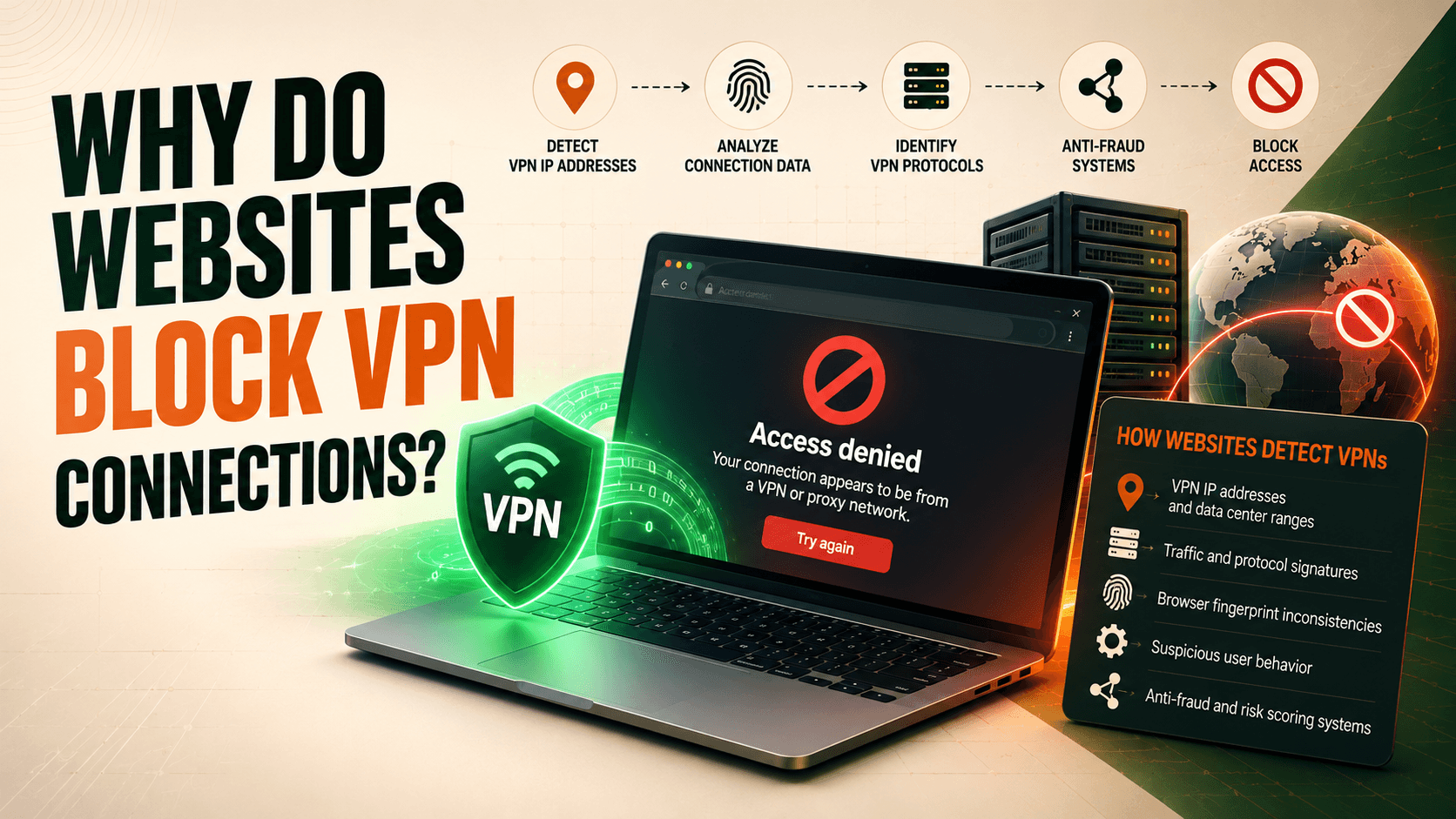
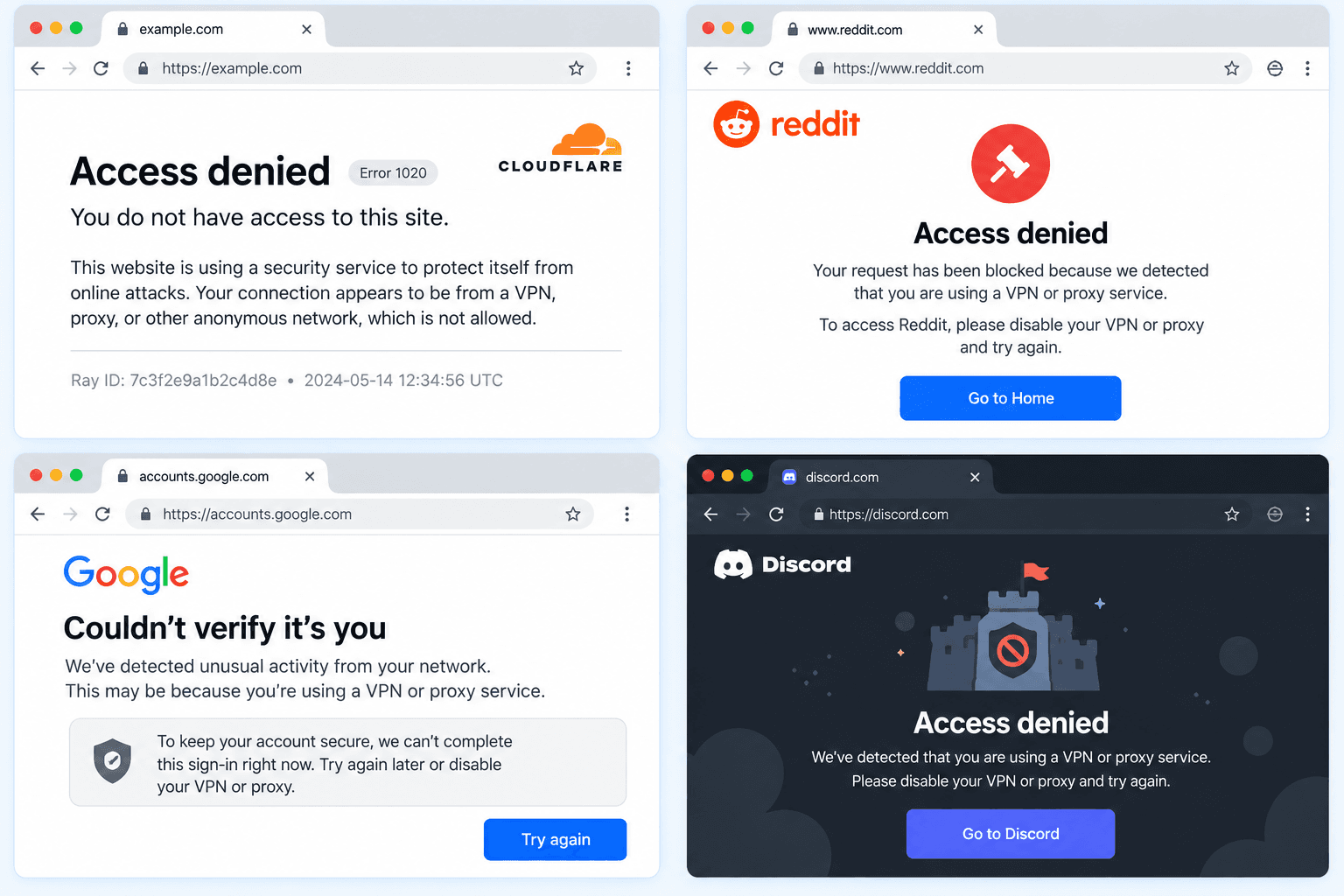
You turn on your VPN, check your IP address, and see that everything is working: your location has changed, and your real IP is hidden. But as soon as you open the website you need, you’re greeted with a VPN or proxy detected or Access denied message.
How does the website even know you’re using a VPN?
Switching VPN servers also doesn’t change your cookies, Browser Fingerprint, or saved browser data.
If the problem involves more than just your IP address, you can try NOID, a browser with separate identities, each with its own device settings, browsing data, and connection. NOID offers a 7-day free trial. It doesn’t guarantee access to a blocked website, but it lets you test a different browser environment.
Let’s look at how websites detect VPNs, why different types of blocks occur, and what you can check yourself.
How Does a Website Know You’re Using a VPN?
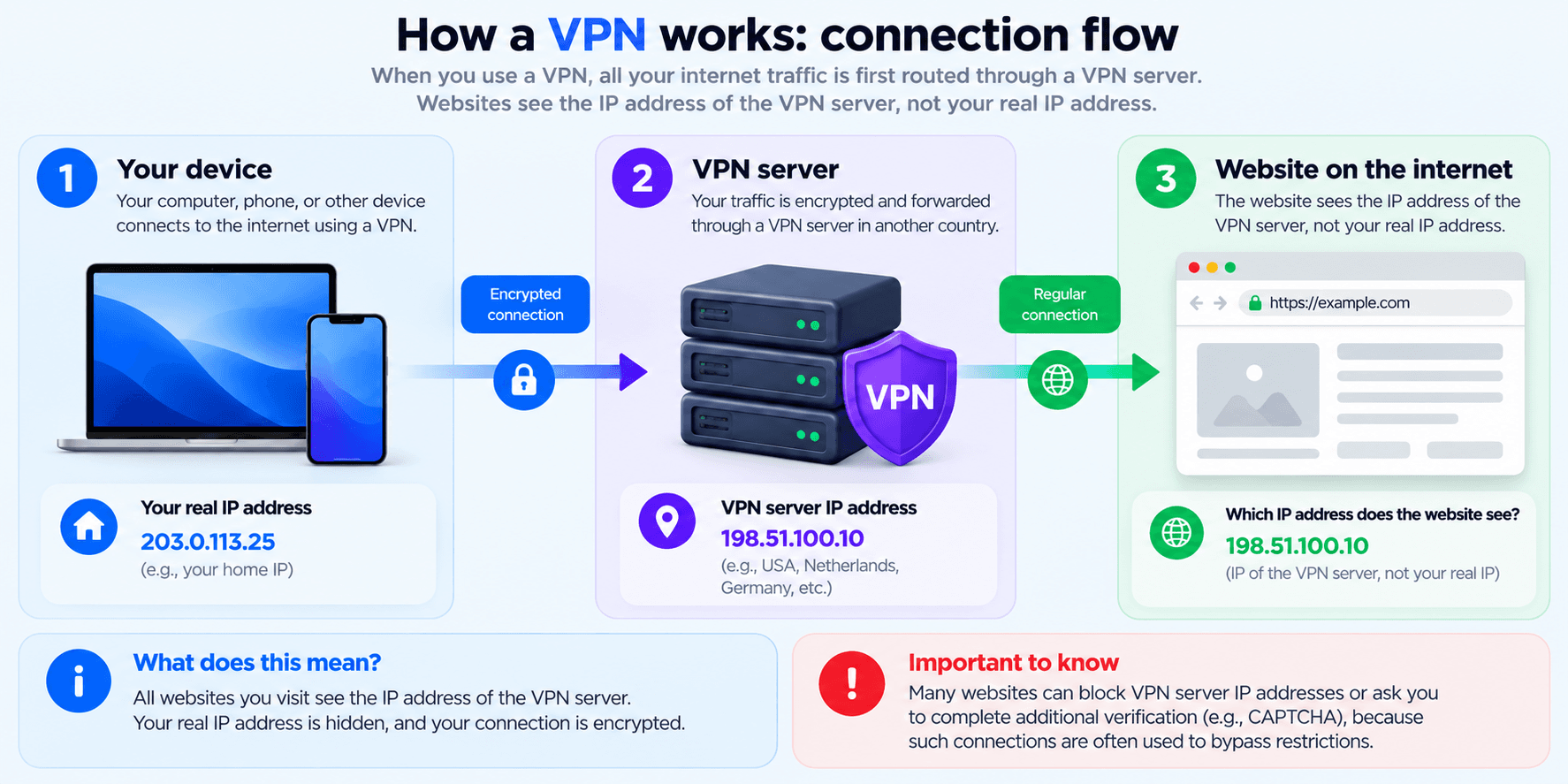
A website can identify a connection as a possible VPN connection based on its IP address and network characteristics, without having access to the applications installed on your device.
Imagine a typical situation:
- You’re at home and connect to a VPN server in another country.
- The VPN routes your internet traffic through an encrypted connection.
- The website receives your request from the VPN server’s public IP address.
- Its security system checks which network the IP belongs to and what is known about it.
- If the address belongs to a known VPN provider or a category of connections the website restricts, access may be blocked.
Websites can use IP Intelligence databases for these checks. These databases contain information about IP addresses, networks, and their characteristics.
Three terms are particularly important here.
IP Reputation refers to the reputation of an IP address. It may depend on its request history, reports of abuse, and other factors. A poor reputation doesn’t mean you’ve personally done anything suspicious.
ASN (Autonomous System Number) identifies an autonomous system, helping determine which network an IP address belongs to. For example, the network may be operated by a residential internet provider or a data center.
Datacenter IP is an IP address associated with data center infrastructure. These addresses are commonly used to host servers, including VPN servers.
Some websites restrict connections from known data centers because they may be associated with automated traffic.
However, an IP address cannot reliably identify a specific person or determine their intentions.
And when a VPN is working correctly without leaks, a website generally sees the VPN server’s exit IP rather than the user’s original public IP address.
Why Do Websites Block VPN Users?
There are several reasons, ranging from protection against automated traffic to regional restrictions and individual platform policies.
Shared IP Addresses and Bad Reputation
Many VPN services use shared exit IP addresses.
Imagine 300 people connected through the same VPN server. One is watching videos, another is searching the web, and someone else is constantly refreshing pages.
To a website, requests from all these users appear to come from the same IP address.
If some users generate suspicious activity, it can affect that address’s reputation. As a result, restrictions may also affect people who are simply browsing ordinary websites.
This creates a frustrating situation: you can get blocked because of the actions of complete strangers.
That doesn’t mean every VPN IP has a poor reputation. Different websites use their own rules and sources of information.
Protection Against Bots and Suspicious Traffic
Websites use automated security systems to protect against spam, excessive requests, fraud, and other forms of abuse.
These systems may consider:
- IP address and network reputation.
- Request frequency and rate limit violations.
- Previous interactions with the website.
- Browser and connection characteristics.
- Additional security rules.
If a system considers a connection potentially risky, it may display a CAPTCHA, require additional verification, or block access entirely.
But using a VPN doesn’t automatically mean you’re a bot.
Automated systems can make mistakes, especially when many legitimate users share the same IP address.
You can learn more about how these checks work in the Cloudflare documentation.
Geographic Restrictions and Licensing
Sometimes a block has nothing to do with security.
Streaming platforms, online services, and other websites may restrict access to content based on a user’s country.
For example, the rights to stream a particular movie may only apply in certain regions.
That’s why a service may need to determine where a connection originates. If an IP address belongs to a VPN network, the platform may restrict streaming because it cannot reliably confirm the user’s location.
Netflix, for example, explains its restrictions on streaming while using a VPN.
Access may also depend on the country where an account was registered, subscription terms, or the service’s specific policies.
As a result, even connecting to a VPN server in the required country doesn’t guarantee that the content will become available.
Cookies, Browser Fingerprint, and Session Data
Changing your IP address doesn’t mean a website automatically sees you as a completely new visitor.
Your browser continues to store cookies, Local Storage, login data, and other information.
Websites may also collect certain characteristics of your device and browser, collectively known as a Browser Fingerprint.
For example, you connect to a VPN server in the United States, but your browser still uses Russian as its language, retains your original time zone, and has an existing login session.
This combination is perfectly normal. However, some security systems may consider these differences alongside other signals.
It’s important to distinguish between four things:
- Network Identity — your IP address and connection characteristics.
- Browser Identity — your browser settings and stored data.
- Account Identity — your account information and history of interactions with the service.
- Platform Access Policy — the rules a website uses to allow or restrict access.
A VPN changes your network route, but it doesn’t control all four of these layers.
To learn more about browser identification while using a VPN, read our article on Browser Fingerprinting With VPN.
Not Every VPN Block Is the Same
Error messages may look similar but point to very different problems.
| What You See | What It May Mean | What to Check First |
|---|---|---|
| VPN or proxy detected | The website has identified a possible VPN or proxy connection | Your exit IP and the website’s policies |
| Access denied / HTTP 403 | The server has refused access | Whether the website works without a VPN and whether your account is restricted |
| Content unavailable in your region | The content isn’t available in a particular country | Your IP location, subscription terms, and licensing restrictions |
| Additional verification required | The website requires additional verification | Cookies, JavaScript, and whether the verification process works |
| Endless CAPTCHA or browser checks | Verification keeps repeating or fails to complete | Cookies, extensions, connection stability, and browser settings |
For example, an HTTP 403 error isn’t necessarily related to your VPN. A website may deny access for other reasons.
If you’re dealing with repeated verification challenges, you can learn more about CAPTCHA and Cloudflare in our separate VPNHook article.
Why Switching VPN Servers Doesn’t Always Solve the Problem
When a website blocks your VPN, the first thing you might want to do is connect to another server.
Sometimes this helps, especially if the problem is related to the reputation of a particular IP address.
But there are several reasons why switching servers might not change anything.
Your New IP May Still Belong to a Known VPN Network
Even if your IP address changes, the website may recognize it as part of the same IP range or infrastructure.
Your New IP May Have a Similar Reputation
A different server doesn’t necessarily mean a better history of activity associated with its IP address.
Your Browser Hasn’t Changed
Your cookies, Browser Fingerprint, Local Storage, and other browsing data are still there.
Your Account Still Has the Same Information
For example, your account’s registration country or subscription terms won’t change just because you connect to another server.
Some Restrictions Don’t Depend on Your IP Address
If a service prohibits a particular action under its account policies, changing your connection may not make any difference.
That’s why it’s important to identify where the problem occurs: at the network, browser, account, or platform policy level.
A Different Approach: Use a Separate Browser Identity
A VPN changes your network route and public IP address. But if you need a separate browser environment, switching servers isn’t enough.
That’s where NOID comes in. It’s a browser that lets you create independent Browser Identities.
Each identity has its own browser and device settings, connection, cookies, browsing history, and login data.
It’s similar to browsing from a separate device: the browser environment has its own technical characteristics and stored data.
NOID includes built-in Residential Proxies, which provide connections through IP addresses associated with residential internet providers. You can also add your own proxy.
You don’t need to manually configure a complex Browser Fingerprint. Each new identity is created as a ready-to-use browser environment.
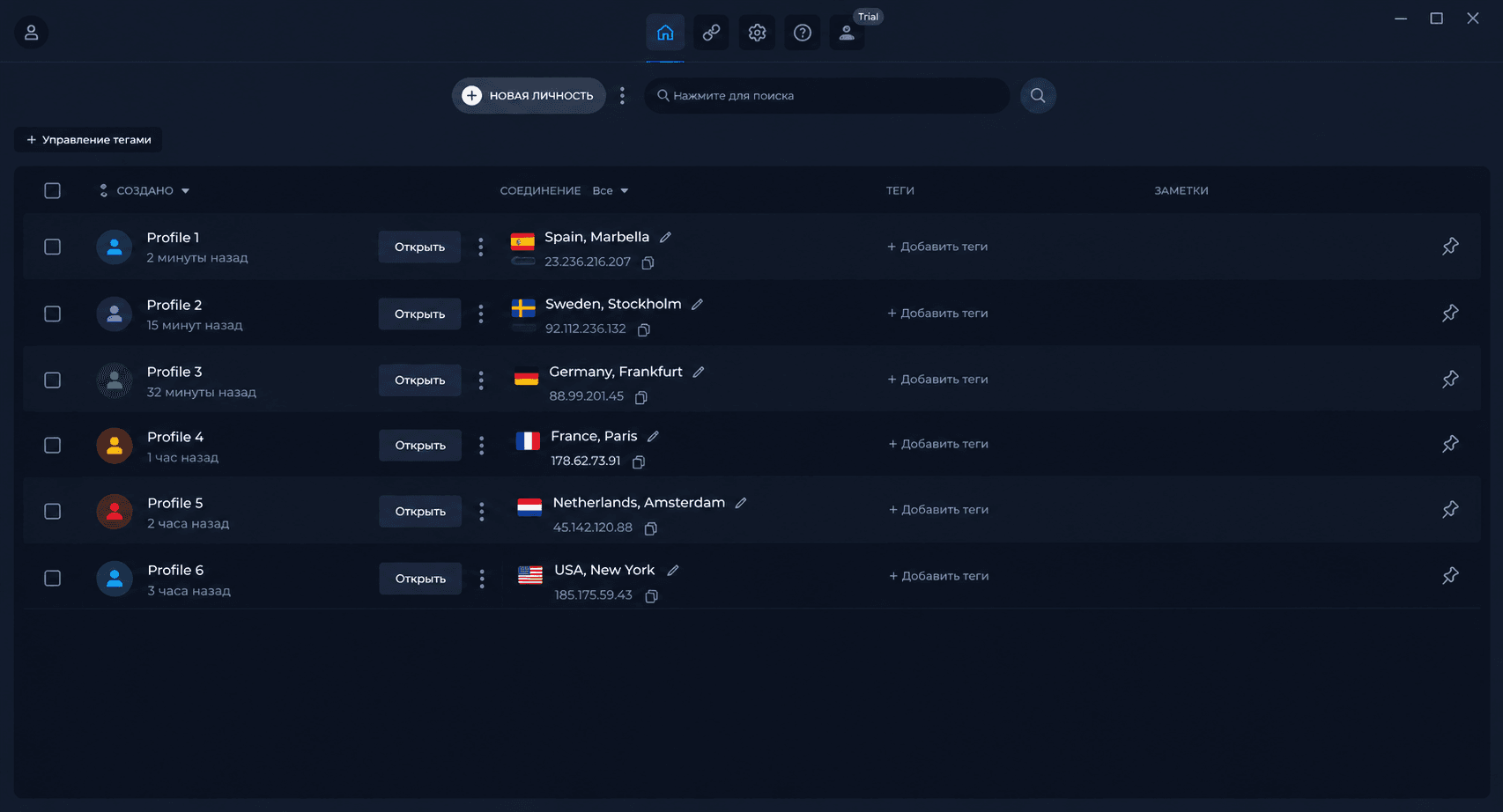
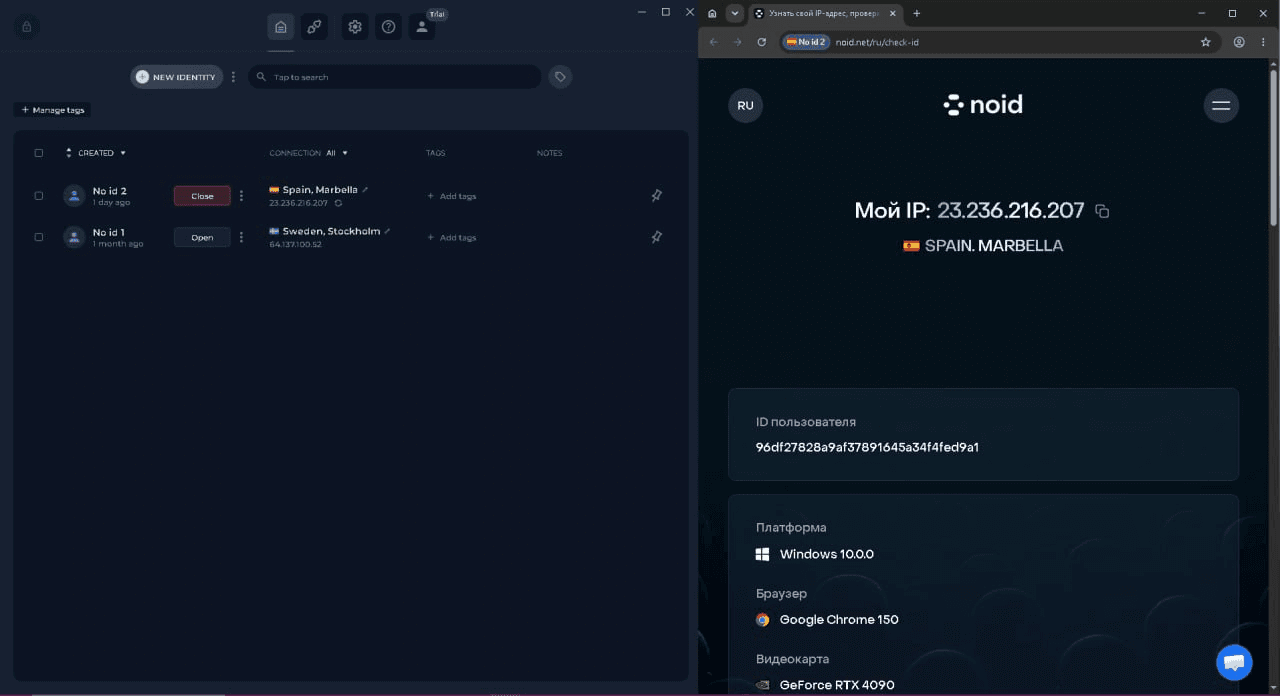
Here’s how it works:
- Create Identity. Create a new browser identity.
- Open. Launch it as a separate browser.
- Check. Verify the browser details and connection information visible to websites.
- Browse. Use websites as you normally would.
- Return. Reopen the same identity later with its saved settings and data.
However, it’s important to understand the limitations of this approach.
NOID helps you manage your browser environment, but it doesn’t change the rules of the websites you visit.
If you want to see whether this approach works for your needs, you can start with a free trial.
Try NOID Free for 7 Days — No Credit Card Required
What You Can Check Before Trying Another Solution
If a website won’t open while you’re using a VPN, start by troubleshooting the connection. This can help you determine whether the restriction is related to your network, browser, or the service itself.
Check Your Public IP Address
Open Whoer.net and check which IP address, country, and internet provider websites can see.
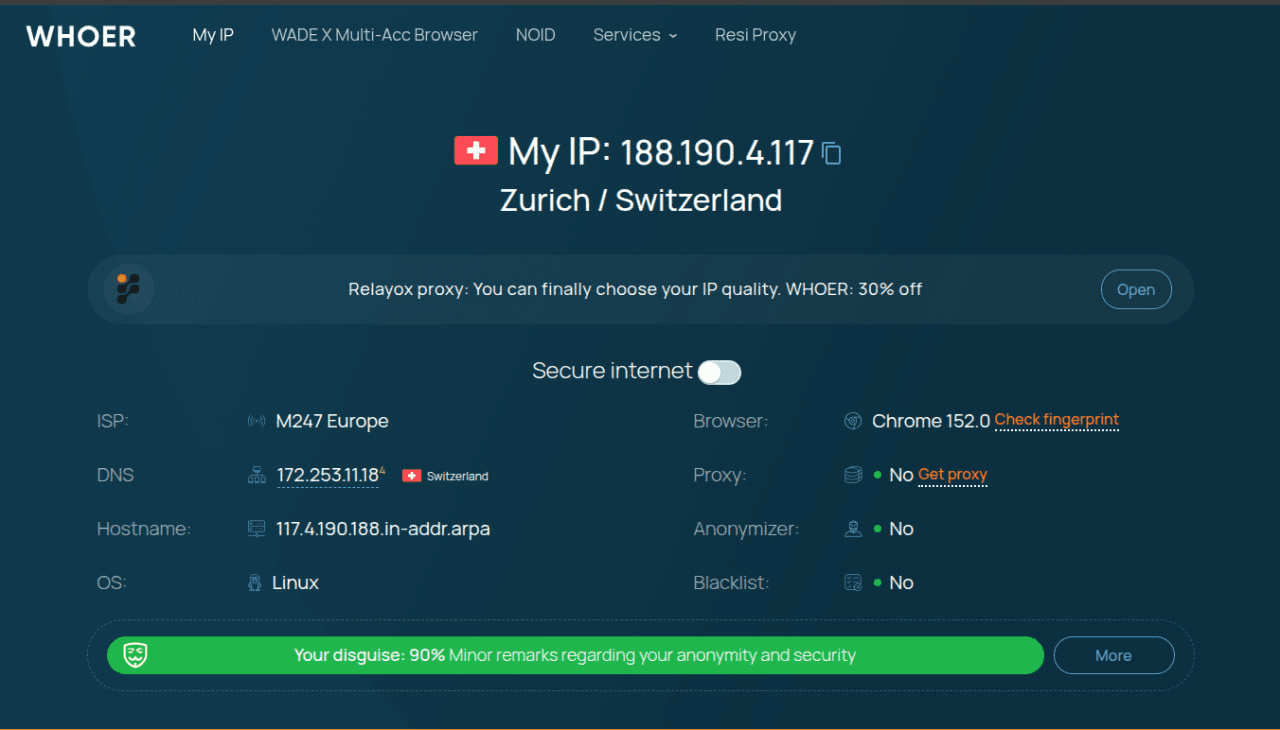
If your VPN is active, you should see the VPN server’s exit IP address.
However, successfully checking your IP doesn’t guarantee that a particular website will allow the connection.
Make Sure Your VPN Is Actually Working
Check the connection status in your VPN application and compare your public IP address before and after connecting.
If your IP address hasn’t changed, the VPN may not be connected, or some traffic may be routed outside the VPN tunnel.
Compare Website Access With and Without Your VPN
If appropriate for your situation, temporarily disconnect your VPN and try opening the same website.
If the website works without a VPN but blocks access when the VPN is enabled, the issue may be related to the exit IP or the platform’s policies.
If the website is unavailable in both cases, there may be another explanation, such as a service outage.
Check DNS and WebRTC
If you notice signs of incorrect traffic routing, check for potential DNS Leaks and WebRTC Leaks.
These leaks can expose additional network information, but their presence alone doesn’t prove they caused the block.
Check Your Browser and Session Data
Make sure JavaScript is working correctly, necessary cookies aren’t blocked, and browser extensions aren’t interfering with the website.
If you’re stuck in an endless CAPTCHA loop, the browser may be failing to save the verification result.
Review the Service’s Access Policies
If a website explicitly prohibits VPN connections, check its official access policies.
Sometimes the problem isn’t a technical error but a restriction related to the platform’s rules, your account region, or your subscription terms.
In that case, contacting support is a better way to find out which connection options are officially supported.