How the browser stores data: Cookies, Local Storage, Session Storage, and Cache
Cookies, Local Storage, Session Storage, and Browser Cache store different types of data in the browser. Learn how each mechanism works, what it is used for, and how long its data remains available.

Paul Jackson
Technology editor
Almost every modern website stores at least some information directly in your browser.
Without local browser storage, the web would work very differently. After every page reload, a website could forget that you were signed in, which language you selected, or what you had already added to your shopping cart.
To avoid this, browsers provide several different storage mechanisms. Each has its own purpose: one helps maintain sessions, another stores website preferences, and another speeds up page loading.
In this article, we will explain the differences between Cookies, Local Storage, Session Storage, and Browser Cache, as well as what happens to each type of data when a tab or browser is closed.
Why Does a Browser Store Data?
Every time you open a website, your browser and the remote server exchange information.
If the browser stored nothing locally, websites would have much less persistent state between requests and sessions.
For example, you might need to:
- sign in again more often;
- select the interface language repeatedly;
- rebuild your shopping cart;
- download the same images, styles, and scripts again.
To make websites more convenient and efficient, browsers store some information directly on the user’s device.
Different types of data are handled by different storage mechanisms.
What Storage Mechanisms Do Browsers Use?
Modern browsers support several independent ways to store website-related data.
The most common are:
- Cookies;
- Local Storage;
- Session Storage;
- Browser Cache.
Although all of them are managed by the browser, they work in very different ways and solve different problems.
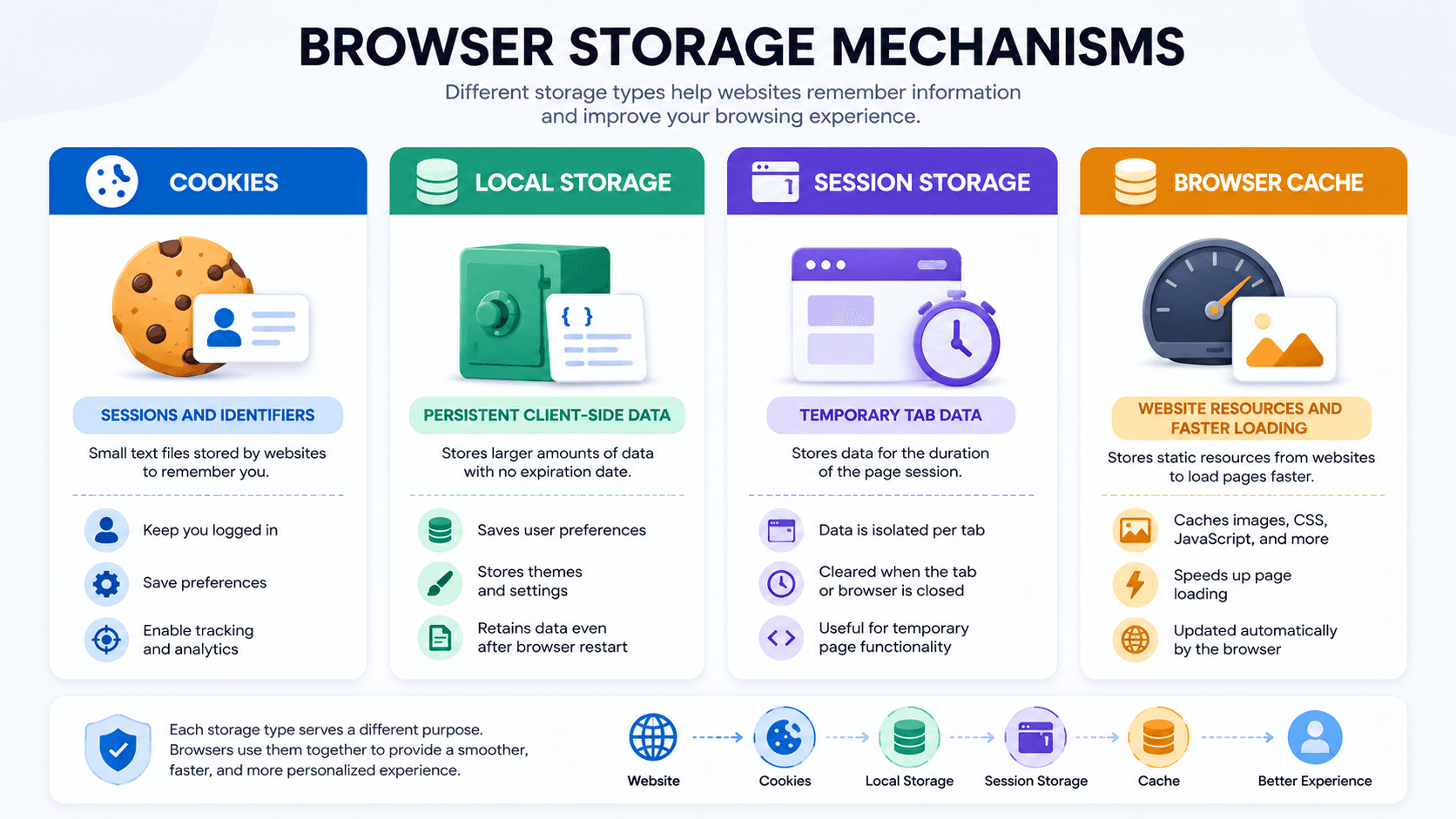
What Are Cookies?
Cookies are small pieces of data that a website can store in the browser.
They are commonly used to help a server maintain state between requests.
Typical use cases include:
- maintaining authentication sessions;
- storing session identifiers;
- remembering language preferences;
- saving selected website settings.
One of the most important characteristics of Cookies is that the browser can automatically send applicable Cookies back to the server with future HTTP requests.
That is why a website can often recognize an existing session after you reload a page or return later.
Not all Cookies behave in exactly the same way. Some are temporary session Cookies, while others can persist until their expiration date or until they are deleted.
Advertising Cookies, Third-Party Cookies, and Cookie Banners are separate topics and are not the main focus of this article.
What Is Local Storage?
Local Storage is a browser storage mechanism designed to keep data on the user’s device.
Unlike Cookies, Local Storage data is not automatically included in HTTP requests.
Websites commonly use it for:
- interface preferences;
- selected themes;
- draft content;
- web application state;
- some offline functionality;
- other client-side settings.
The main characteristic of Local Storage is persistence.
Closing a tab or completely closing the browser does not normally delete it.
The data remains stored until the website removes it, the user clears site data, or the browser removes it under other applicable conditions.
What Is Session Storage?
Session Storage is similar to Local Storage, but its lifetime is tied much more closely to the current browsing context.
In general:
- each tab or browsing context has its own Session Storage;
- the data is available to pages from the same origin within that session;
- it is removed when the associated tab or browsing context is closed.
For example, a website may use Session Storage to keep temporary form state or other information that only needs to exist while a particular tab is open.
If you reload the page, that data can remain available.
Once the tab is closed, however, the Session Storage associated with that session is normally removed.
What Is Browser Cache?
Browser Cache serves a different purpose.
Instead of primarily storing user or application state, it stores copies of resources downloaded from websites.
These may include:
- images;
- CSS files;
- JavaScript files;
- fonts;
- other static resources.
When you revisit a website, the browser may be able to reuse cached resources instead of downloading them again.
This can:
- reduce page load time;
- decrease network traffic;
- reduce the number of requests to the server;
- make repeat visits feel faster.
This is one reason why a website may load more quickly the second time you open it.
Cookies vs Local Storage vs Session Storage vs Cache
Although these mechanisms all store data locally, their purposes and behavior are different.
| Storage Type | Typical Purpose | Sent to Server Automatically? | Typical Lifetime |
|---|---|---|---|
| Cookies | Sessions, identifiers, preferences | Yes, when applicable | Session-based or persistent |
| Local Storage | Persistent client-side data | No | Until deleted |
| Session Storage | Temporary tab/session data | No | Until tab/session closes |
| Browser Cache | Website resources | No, but reused by browser | Until expired, evicted, or cleared |
Modern websites often use several of these mechanisms at the same time.
For example, a site may use a Cookie for authentication, Local Storage for interface preferences, Session Storage for temporary state, and Browser Cache for images and JavaScript.
What Happens After You Close the Browser?
The result depends on the storage mechanism.
- Cookies may remain or be removed depending on whether they are persistent or session-based.
- Local Storage normally remains after the browser is closed.
- Session Storage is associated with the current tab or browsing session and is normally removed when that context is closed.
- Browser Cache usually remains until resources expire, the browser removes them, or the user clears the cache.
This is why some websites can recognize an existing session after you reopen the browser, while others require you to sign in again.
The exact result can also depend on browser settings, privacy controls, Incognito or Private Mode, and how the website configured its storage.
What Else Does a Browser Store?
Cookies, Local Storage, Session Storage, and Cache are only part of the information that browsers may keep locally.
Browsers can also store:
- browsing history;
- saved passwords;
- autofill data;
- site permissions;
- download history;
- bookmarks;
- form data.
These are managed separately from the main web storage mechanisms discussed above.
For example, saved passwords are typically stored through the browser’s password manager rather than in Browser Cache.
Is Local Storage More Persistent Than Cookies?
Not necessarily in every case.
Local Storage normally remains until it is explicitly deleted, while Cookies can have predefined expiration times.
However, persistent Cookies can also remain for long periods.
The key difference is not simply which mechanism lasts longer.
The more important distinction is how they are used:
- Cookies can be automatically attached to matching HTTP requests;
- Local Storage is accessed by client-side code and is not sent automatically.
This difference affects both functionality and privacy behavior.
Can Websites Track Users Through Browser Storage?
Yes, browser storage can contribute to recognition and tracking.
For example, a website may store an identifier in:
- Cookies;
- Local Storage;
- another supported browser storage mechanism.
If that identifier remains available during a later visit, the site may be able to associate the new session with previous activity.
However, browser storage is only one part of online tracking.
Websites may also use account logins, IP information, analytics systems, Browser Fingerprinting, and other signals.
Clearing Cookies alone therefore does not necessarily remove every way a website can recognize a returning browser or account.
How Incognito Mode Affects Browser Storage
Incognito or Private Mode changes how browser storage is handled.
During a private session, websites can still create temporary:
- Cookies;
- Local Storage;
- Session Storage;
- Cache.
These mechanisms are necessary for websites to function normally.
The important difference is that the temporary storage associated with the private session is generally removed when the last private window is closed.
Incognito Mode therefore does not disable browser storage. It gives the session a separate temporary environment.
| Parameter | Regular Browser | Incognito Mode |
|---|---|---|
| Cookies | Can persist after the browser is closed | Stored in a separate temporary environment |
| Local Storage | Can persist after the browser is closed | Stored in a separate temporary environment |
| Session Storage | Temporary browsing-context data | Stored in a separate temporary environment |
| Cache | Can persist after the browser is closed | Stored in a separate temporary environment |
| After Closing | Cookies, Local Storage, and Cache may remain | Temporary data is removed when the last private window closes |
How WadeX Isolates Browser Data
In a regular browser profile, websites operate within the storage environment of that profile.
If multiple independent browser environments are required, separating local state becomes important.
In WadeX, each profile uses its own isolated browser environment.
For each profile, data such as the following is kept separately:
- Cookies;
- Local Storage;
- Session Storage;
- Browser Cache.
This means that local browser data from one profile is separated from the local data of another profile.
Such isolation can be useful when maintaining multiple independent browser sessions.
It is important, however, to distinguish profile isolation from anonymity. Separate storage prevents local profile data from being mixed, but websites can still analyze other signals such as IP information, account activity, and Browser Fingerprint characteristics.
Why Browser Storage Matters for Privacy
Browser storage is useful, but it can also affect privacy.
Persistent data allows websites to remember useful information, but the same mechanisms can sometimes be used to associate activity across multiple visits.
For example:
- Cookies can store persistent identifiers;
- Local Storage can keep site-specific data for long periods;
- Cache can retain previously downloaded resources locally;
- signed-in sessions can connect activity directly to an account.
This does not mean local storage should always be disabled.
Many websites depend on it for normal functionality.
A more practical approach is to understand what each mechanism does and use browser privacy controls according to the task.
Conclusion
Modern websites use several different browser storage mechanisms, and each one serves a specific purpose.
Cookies commonly help maintain sessions and can be automatically sent with matching requests.
Local Storage keeps persistent client-side data that remains after the browser is closed.
Session Storage is intended for temporary data associated with the current browsing session or tab.
Browser Cache stores copies of website resources so they can load faster on future visits.
Understanding these differences makes it easier to see why websites can remember logins, preferences, and application state — and why some data remains after a page or browser is closed while other data disappears automatically.