How to Connect WhoVPN on Linux Using OpenVPN
Follow the steps to connect WhoVPN through OpenVPN on Ubuntu, Linux Mint, Pop!_OS, and other Debian-based systems. We explain how to prepare the configuration files and verify your connection.

Paul Jackson
Technology editor
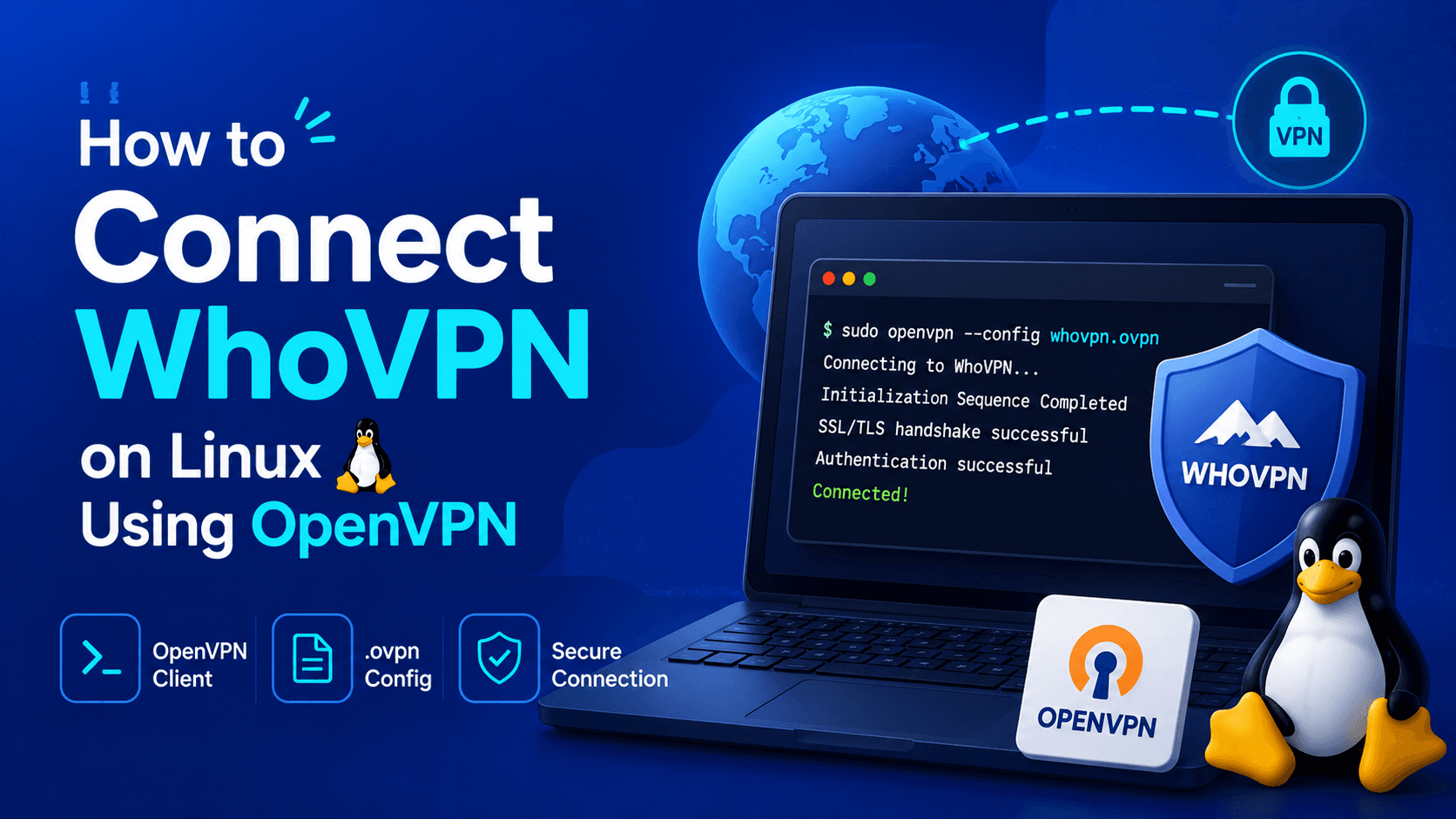
Looking for a simple way to use OpenVPN on Ubuntu or Linux? This guide explains how to connect to WhoVPN using the official OpenVPN command-line client.
The terminal client is the recommended connection method because it works consistently across Ubuntu, Linux Mint, Pop! _OS, and most other Debian-based Linux distributions. It also makes troubleshooting much easier than graphical VPN managers.
By the end of this guide, you’ll know how to:
- install OpenVPN on Linux;
- download and extract your WhoVPN configuration files;
- connect to a VPN server from the terminal;
- verify that your VPN connection is working correctly.
Requirements
Before you begin, make sure you have:
- an active WhoVPN subscription;
- the OpenVPN configuration archive sent to your email after purchasing the subscription;
- a Linux account with
sudoprivileges; - an active Internet connection.
Update your package index.
sudo apt update
If OpenVPN is not installed, install it.
sudo apt install openvpn unzip
Verify that OpenVPN is available.
openvpn --version
If version information is displayed, the client is installed correctly.
Download the Configuration Files
After purchasing WhoVPN, you’ll receive an email containing:
- your subscription details;
- an archive with OpenVPN configuration files.
If you’ve lost the email, you can recover your configuration files at:
Enter the email address associated with your WhoVPN subscription. A new email containing your available configuration files will be sent automatically.
Extract the Configuration Archive
If the unzip utility isn’t installed, install it first.
sudo apt install unzip
unzip whoerconfigs_openvpn.zip -d whoerconfigs_openvpn
Open the extracted directory.
cd whoerconfigs_openvpn
List the available server profiles.
ls
Example:
Whoer_Austria_at.ovpn Whoer_Germany_de.ovpn Whoer_France_fr.ovpn Whoer_United_States_us.ovpn
Each configuration file represents a different VPN server location.
Choose the country you want to connect through.
Check Your OpenVPN Version
Before connecting, check which version of OpenVPN is installed.
openvpn --version
If you’re running OpenVPN 2.4 or later, continue to the next step.
If you’re using OpenVPN 2.3 or an older release and receive TLS-related errors during connection, open the .ovpn file in a text editor.
Locate the following line:
#tls-cipher "DEFAULT:@SECLEVEL=0"
Remove the leading # so it becomes:
tls-cipher "DEFAULT:@SECLEVEL=0"
Newer versions of OpenVPN already include the required compatibility settings, so this modification is only necessary for older clients.
Connect to WhoVPN
Navigate to the directory containing your configuration files.
Launch OpenVPN using the configuration file for the country you want to connect to.
For example:
sudo openvpn Whoer_Austria_at.ovpn
You can also specify the configuration file explicitly.
sudo openvpn --config Whoer_Austria_at.ovpn
Both commands produce the same result.
OpenVPN will initialize the encrypted tunnel and establish a connection to the selected WhoVPN server.
When the connection has been established successfully, you’ll see:
Initialization Sequence Completed
Once this message appears, your VPN connection is active and all network traffic is routed through the selected VPN server.
Disconnect
The VPN connection remains active while the OpenVPN process is running.
To disconnect, return to the terminal and press:
Ctrl + C
The VPN tunnel will close immediately, and your system will return to its normal network connection.
Verify Your VPN Connection
After connecting, it’s a good idea to confirm that everything is working correctly.
Check that:
- your public IP address has changed;
- DNS requests are routed through the VPN;
- there are no DNS or WebRTC leaks.
FAQ
Where can I download the OpenVPN configuration files?
After you purchase a WhoVPN subscription, an archive containing the configuration files is sent to the email address provided during checkout. If the email was deleted or lost, you can retrieve the configurations through the WhoVPN recovery page.
Which Linux distributions are supported?
This guide works for Ubuntu, Linux Mint, Pop! _OS, Debian, and most other Debian-based distributions that support OpenVPN.
Can I connect to a different server?
Yes. Each .ovpn file in the archive corresponds to a separate VPN server. To change the connection country, disconnect from the current server and run OpenVPN with a different configuration file.
Do I need to edit the .ovpn file?
In most cases, no. WhoVPN configuration files are ready to use. Editing may only be necessary when using OpenVPN 2.3 or earlier if TLS errors occur during connection.
Can I keep the VPN running in the background?
Yes. The VPN connection remains active as long as the OpenVPN process is running. If you want it to connect automatically when the system starts, you can configure OpenVPN as a systemd service. However, most users will find it more convenient to start the VPN manually through the terminal.
Why does OpenVPN require administrator privileges?
When connecting, OpenVPN creates a virtual network interface and modifies the system routing table. These operations require administrator privileges, which is why OpenVPN is usually run with sudo. For example: sudo openvpn Whoer_Austria_at.ovpn
How do I know that the VPN has connected successfully?
Once the connection is established, the terminal will display Initialization Sequence Completed. This means the VPN tunnel has been successfully created and all network traffic now passes through the selected WhoVPN server.
Service comparison
Compare VPNs and antidetect browsers in one place: editorial scores, parameter bars, feature tags, and pros & cons—side by side.
Compare