How to Check If Your VPN Is Really Working (Complete VPN Test Checklist)
Learn how to verify whether your VPN is actually protecting your connection by checking your IP address, DNS, WebRTC, IPv6, browser consistency, streaming access, and overall network security.

Paul Jackson
Technology editor
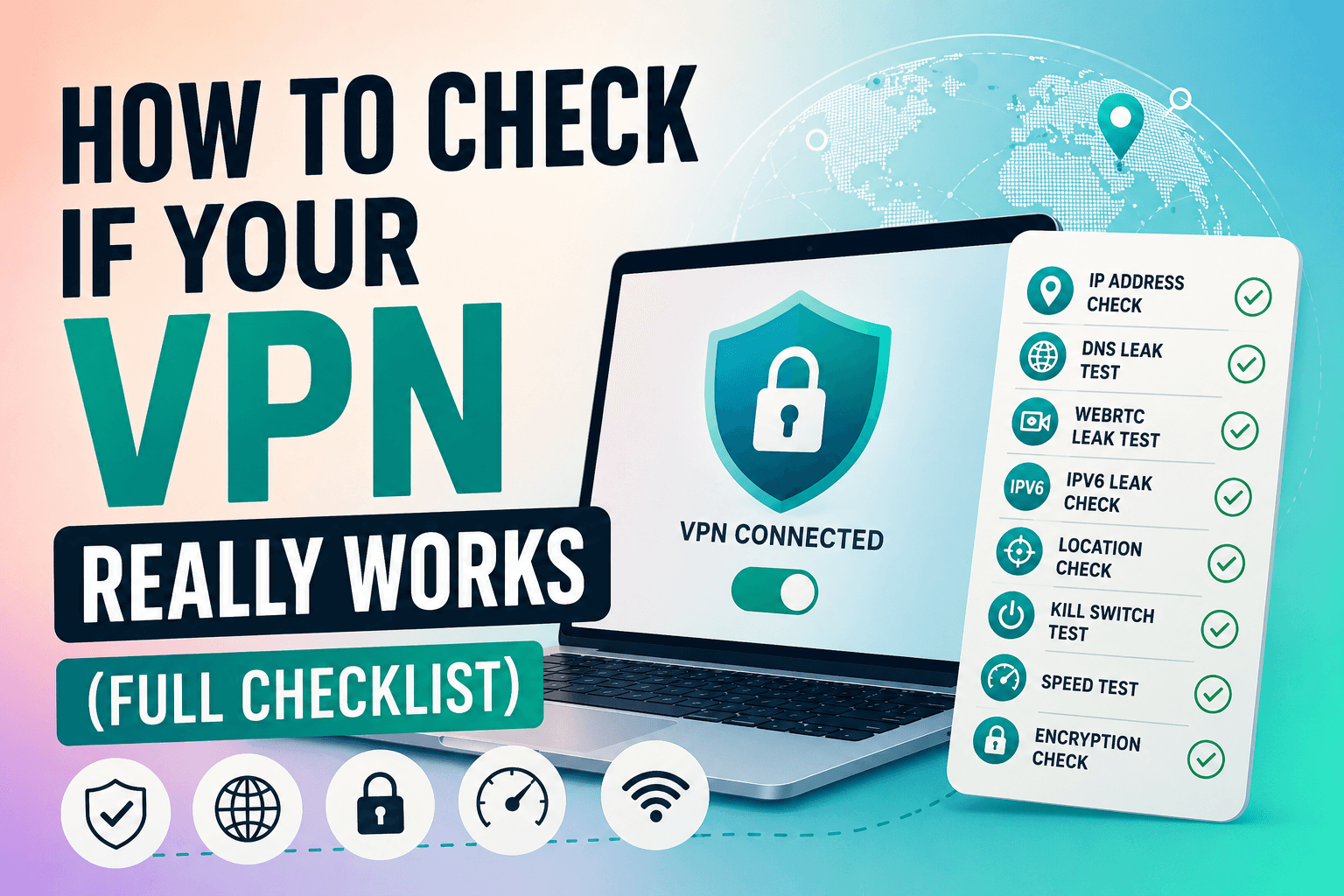
Most people connect to a VPN, see the “Connected” status, and assume their privacy is fully protected.
In reality, a VPN connection alone doesn’t guarantee that all of your traffic is secured.
A VPN may still leave behind information that websites can use to identify your network or estimate your real location, including:
- your public IP address;
- DNS requests;
- WebRTC information;
- IPv6 traffic;
- browser and location-related signals.
That’s why it’s worth verifying your VPN configuration instead of relying solely on the connection indicator.
This guide walks through the most important checks to make sure your VPN is working as expected.
Step 1: Verify Your Public IP Address
The first thing to check is your visible IP address.
Without a VPN, websites can normally see:
- your real public IP;
- your internet service provider (ISP);
- your approximate geographic location.
After connecting to a VPN, those details should change.
Verify that:
- your public IP matches the VPN server;
- the detected country is correct;
- the ISP is the VPN provider rather than your local internet provider.
Tools such as Whoer make it easy to confirm whether your connection is using the expected VPN endpoint.
If your real IP address is still visible, the VPN is not routing your traffic correctly.
Step 2: Check for DNS Leaks
Changing your IP address isn’t always enough.
If DNS requests continue to use your ISP’s DNS servers, websites may still learn which domains you’re visiting and identify your network provider.
A properly configured VPN should route DNS queries through its own secure DNS servers.
Check that:
- DNS servers belong to the VPN provider;
- DNS location matches the VPN location;
- requests do not bypass the VPN tunnel.
Common warning signs include:
- your ISP appears as the DNS provider;
- DNS servers remain in your real country;
- DNS traffic bypasses the VPN completely.
DNS leaks remain one of the most common VPN configuration issues.
Step 3: Test for WebRTC Leaks
WebRTC is a browser technology used for:
- voice calls;
- video conferencing;
- peer-to-peer communication.
Under certain circumstances, WebRTC can expose additional network information even when a VPN is active.
Depending on the browser, websites may still obtain:
- local IP addresses;
- network interface information;
- VPN-related networking details.
This issue is especially common in Chromium-based browsers.
Running a WebRTC leak test helps verify what information websites can still access.
Step 4: Check IPv6 Protection
Many VPN services primarily protect IPv4 traffic.
However, modern networks increasingly support IPv6.
If IPv6 traffic bypasses the VPN tunnel, websites may still detect:
- your ISP;
- your approximate location;
- your network identity.
Verify whether:
- IPv6 is disabled;
- IPv6 traffic is routed through the VPN;
- IPv6 leak protection is enabled.
A VPN that protects only IPv4 may leave part of your traffic exposed.
Step 5: Check Whether Your Location Looks Consistent
Modern websites rarely rely on a single signal.
Instead, they compare multiple browser and network characteristics, including:
- IP address;
- timezone;
- browser language;
- DNS location;
- Browser Fingerprint.
For example, a browser reporting:
- a German IP address;
- a Russian timezone;
- French DNS servers;
- an English browser locale,
may appear inconsistent to some anti-fraud systems.
The goal isn’t simply changing your IP address—it’s maintaining a browser environment that looks internally consistent.
Step 6: Test Streaming and Geo-Unblocking
A VPN can function perfectly while still failing to unblock region-restricted content.
Streaming services often use additional detection methods beyond simple IP geolocation.
Common examples include:
- Netflix;
- Disney+;
- Hulu;
- BBC iPlayer.
A practical test is to verify whether region-specific content actually changes after connecting to another country.
If the content library remains unchanged, the platform may still recognize VPN traffic or rely on additional anti-VPN detection mechanisms.
Step 7: Measure VPN Performance
Privacy matters—but performance matters too.
After connecting, check:
- download speed;
- upload speed;
- latency;
- packet loss.
Some performance loss is expected because traffic travels through an additional server.
However, warning signs include:
- unusually slow downloads;
- unstable connections;
- frequent disconnects;
- excessive latency.
A VPN should remain practical for everyday use, not just secure.
Step 8: Verify the Kill Switch
A Kill Switch helps prevent accidental IP exposure if the VPN connection drops unexpectedly.
Without it:
- the VPN disconnects;
- internet traffic automatically switches back to your normal connection;
- your real IP becomes visible.
With Kill Switch enabled:
- internet access is temporarily blocked until the VPN reconnects.
This feature is especially useful for:
- torrenting;
- remote work;
- privacy-sensitive activities.
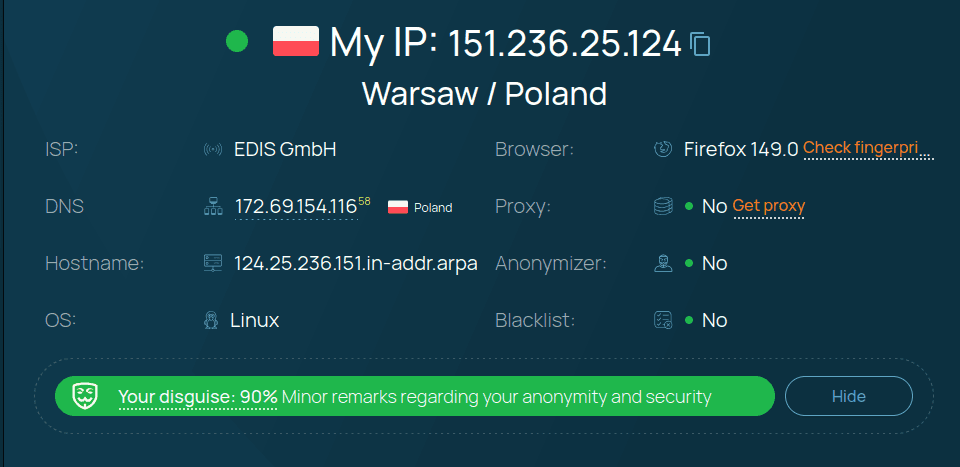
Step 9: See What Websites Actually Receive
The most reliable test is to view your connection exactly as a website does.
Whoer can show:
- public IP address;
- ISP;
- DNS servers;
- WebRTC information;
- browser characteristics;
- detected geolocation.
Reviewing these values provides a realistic picture of what websites can actually observe about your connection.
Common VPN Configuration Mistakes
Many VPN problems aren’t caused by the VPN itself, but by incorrect configuration.
Some of the most common issues include:
- DNS leaks;
- WebRTC left enabled;
- IPv6 traffic bypassing the VPN;
- browser location services revealing your real location;
- VPN servers blocked by streaming platforms;
- unreliable free VPN providers.
In many situations, the VPN tunnel is working correctly—the surrounding network configuration is what exposes additional information.
What Should a Modern VPN Protect?
A VPN should do more than simply replace your IP address.
Ideally, it should also provide:
- IP address masking;
- DNS leak protection;
- WebRTC leak protection;
- IPv6 support or protection;
- Kill Switch functionality;
- reliable access to geo-restricted services.
Services such as WhoVPN combine multiple VPN protocols with built-in leak protection. Regardless of which provider you use, verifying your connection should always be part of the setup process.
The “Connected” status alone is no longer enough to confirm that your privacy is fully protected.
VPN Verification Checklist
Before assuming your VPN is working correctly, verify the following:
- Done:Public IP address has changed
- Done:ISP matches the VPN connection
- Done:DNS requests use VPN DNS servers
- Done:No WebRTC leaks are detected
- Done:IPv6 traffic is protected
- Done:Browser location appears consistent
- Done:Streaming services work as expected
- Done:VPN speed is acceptable
- Done:Kill Switch is enabled
- Done:Leak tests show the expected results
If all of these checks pass, your VPN configuration is likely working as intended.
| Check | Expected Result |
|---|---|
| Public IP | VPN IP is displayed |
| DNS | VPN DNS servers are used |
| WebRTC | No leaks detected |
| IPv6 | Protected or disabled |
| Browser consistency | Matches VPN location |
| Streaming | Region changes successfully |
| Performance | Acceptable speed and latency |
| Kill Switch | Enabled |
| Final verification | All leak tests pass |