What Incognito Mode Really Does — and What It Does Not Hide
Incognito Mode creates a temporary isolated browser session, but it does not hide your IP, prevent Browser Fingerprinting, or make you anonymous online.

Paul Jackson
Technology editor
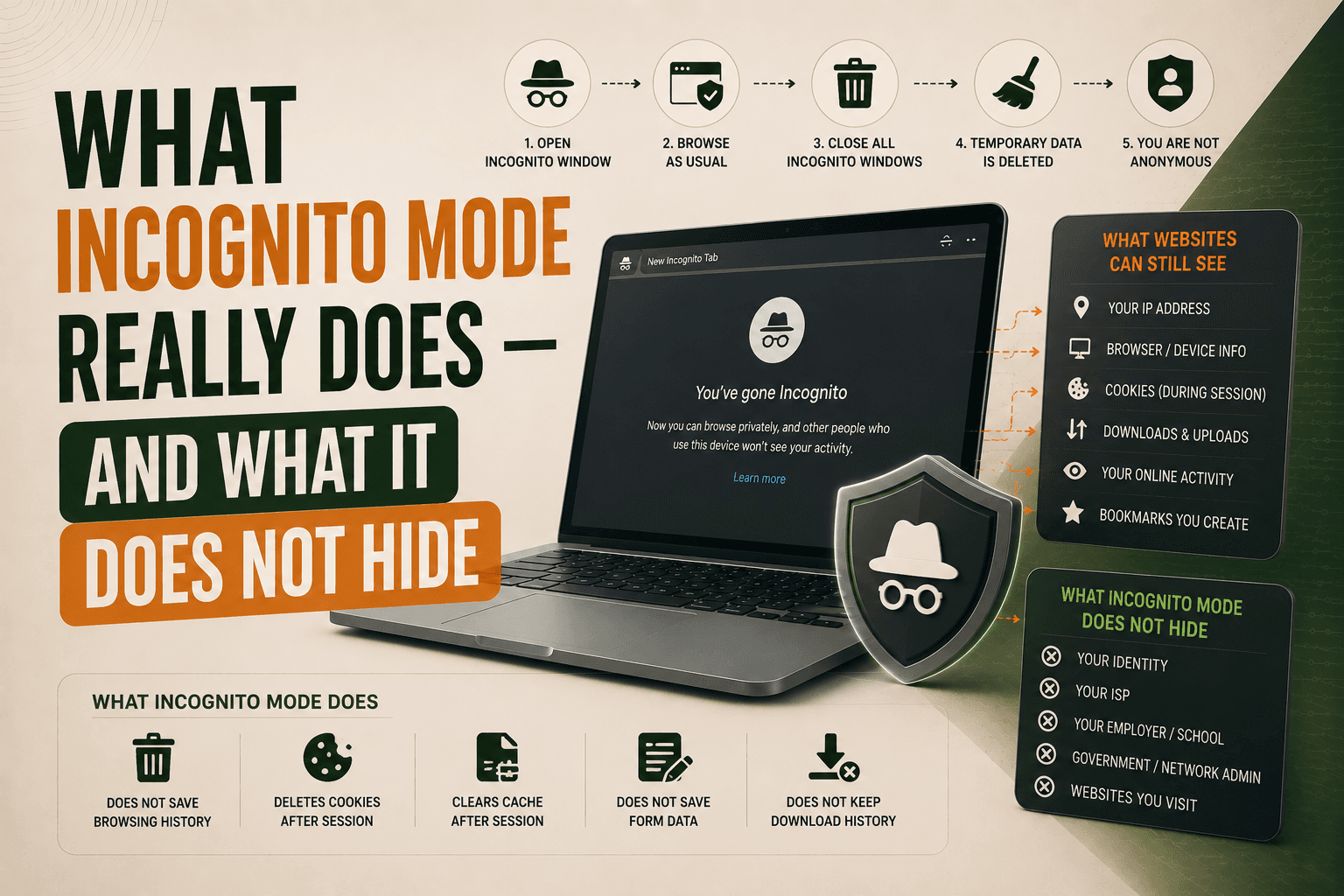
Many people assume that Incognito Mode makes them anonymous online.
It does not.
Incognito Mode is designed primarily to protect privacy on the local device, not to hide your identity from websites, internet providers, or online services.
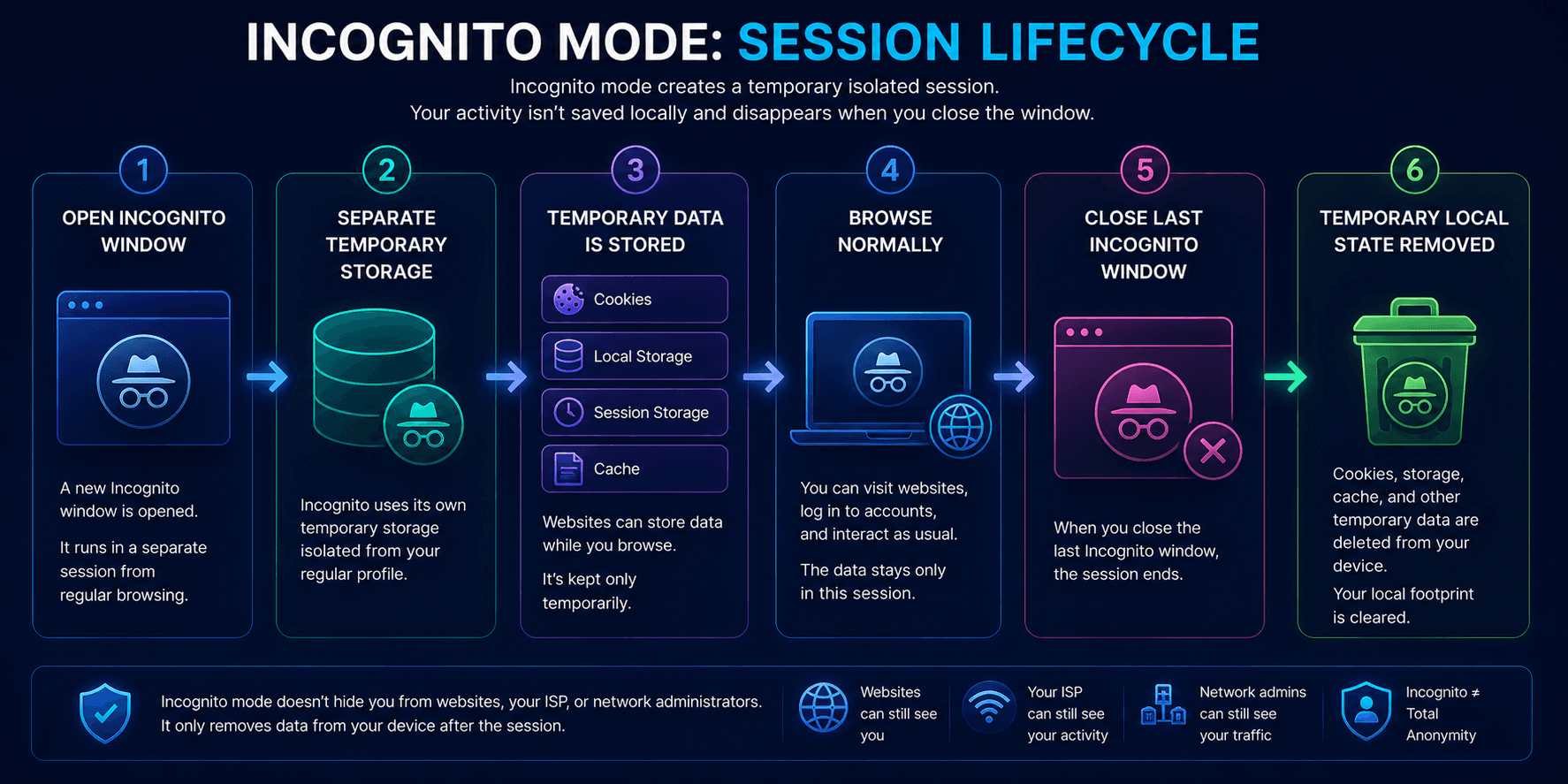
When you open an Incognito window, the browser creates a temporary isolated session. That session uses separate Cookies, Local Storage, Session Storage, and Cache, and most of that temporary browser data is removed after the last Incognito window is closed.
However, websites still load normally, scripts still run, and the browser continues to expose technical information about the device and connection.
In this article, we will explain how Incognito Mode actually works, what data it removes, what websites can still see, and when you may need additional tools such as a VPN or isolated browser profiles.
| Local Device Data | Website / Network Visibility |
|---|---|
| History — removed after the session is closed | Public IP — remains visible during the session |
| Temporary Cookies — removed after the session is closed | Browser Fingerprint — remains available during the session |
| Local Storage — removed after the session is closed | Account Activity — remains available during the session |
| Session Storage — removed after the session is closed | Network Metadata — remains available during the session |
| Cache — removed after the session is closed | — |
What Is Incognito Mode?
When you open an Incognito window, the browser creates a temporary isolated browsing session.
This session is separated from the main browser profile.
In practice, this means that:
- browsing history starts fresh;
- previously stored Cookies from the regular profile are not normally reused;
- websites do not access the regular profile’s Local Storage;
- a separate temporary browser Cache is used;
- new session data is stored only for the duration of the Incognito session.
The key point is that Incognito Mode does not disable Cookies, Local Storage, or Cache.
It simply gives the session its own temporary storage area.
When the Incognito session ends, that temporary local state is removed.
What Happens While Incognito Mode Is Open?
While an Incognito window is active, websites work almost the same way they do in a regular browser session.
They can still:
- create Cookies;
- write data to Local Storage;
- use Session Storage;
- cache resources;
- run JavaScript;
- load analytics scripts;
- use browser APIs.
These mechanisms are necessary for many normal website features.
Without temporary storage, basic actions such as the following would become difficult or impossible:
- signing in to an account;
- adding products to a shopping cart;
- saving a selected language;
- navigating through an authenticated dashboard;
- maintaining session state between pages.
The main difference is that this data is temporary and normally disappears after the final Incognito window is closed.
What Data Is Removed After Incognito Mode Is Closed?
When the last Incognito window is closed, the browser removes most local browsing data created during that session.
This generally includes:
- Incognito browsing history;
- temporary Cookies;
- Local Storage created during the session;
- Session Storage;
- temporary Cache;
- site data associated with that Incognito session.
This is why websites often ask you to sign in again the next time you open Incognito Mode.
However, this cleanup only affects data stored locally by the browser.
It does not delete information already sent to websites or saved on remote servers.
| Removed Locally | Not Removed Remotely |
|---|---|
| Browsing History | Account Activity |
| Temporary Cookies | Server Logs |
| Local Storage | Purchases |
| Session Storage | Searches |
| Temporary Cache | Uploaded Data |
| — | Analytics Events |
What Do Websites Still See in Incognito Mode?
Incognito Mode changes local storage behavior, but it does not hide the browser from websites.
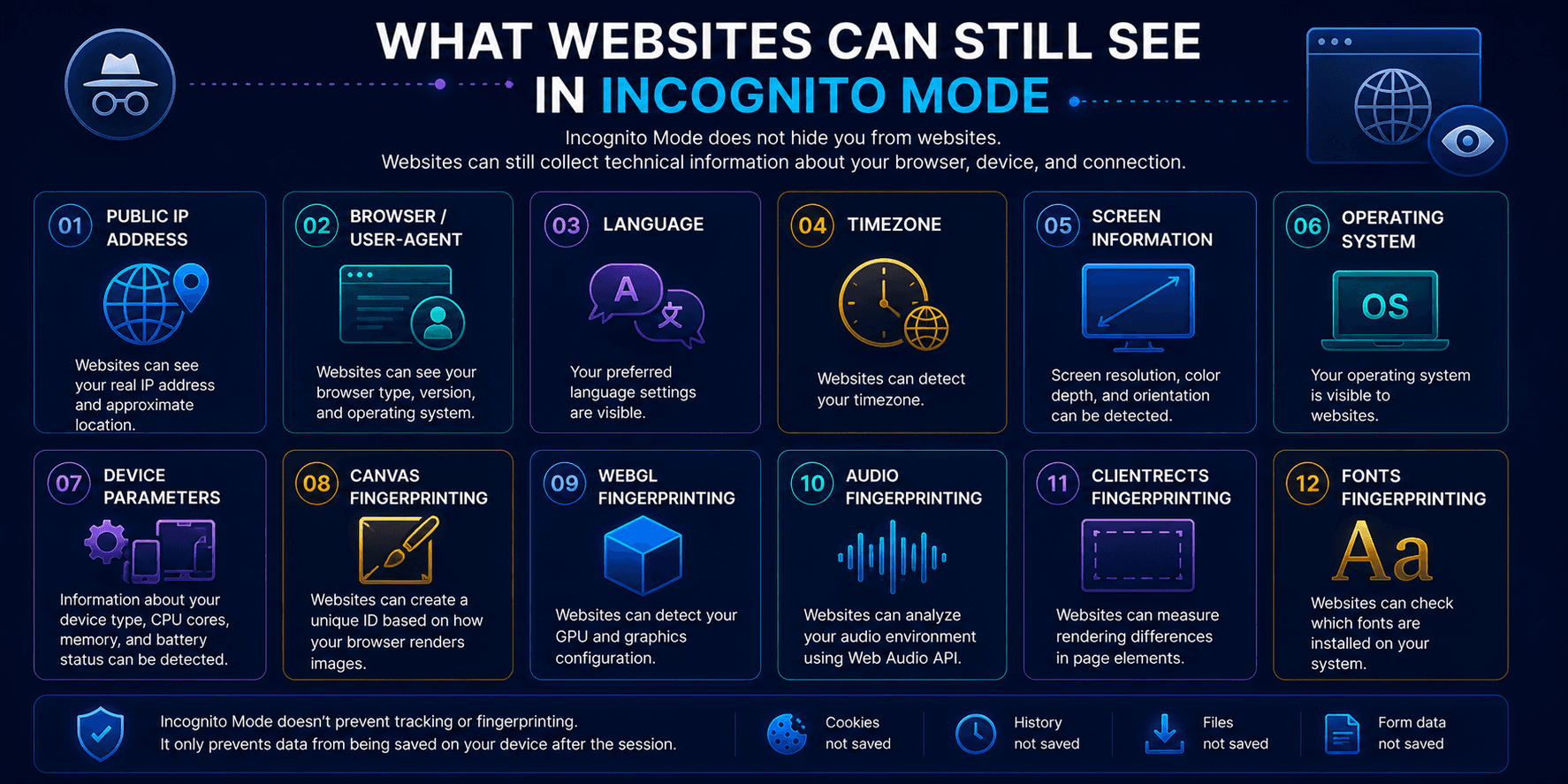
During the session, websites can still receive normal technical information such as:
- public IP address;
- User-Agent or equivalent browser information;
- browser language;
- screen characteristics;
- timezone;
- operating system information;
- device-related parameters.
Websites may also use Browser Fingerprinting.
Fingerprinting can analyze signals related to:
- Canvas;
- WebGL;
- Audio;
- ClientRects;
- fonts;
- screen properties;
- other browser APIs.
These technologies work independently of whether the browser is in Incognito Mode.
Incognito Mode may begin with a cleaner local state, but it does not automatically change the technical characteristics of the browser environment.
Does Incognito Mode Prevent Browser Fingerprinting?
No.
Browser Fingerprinting does not depend entirely on Cookies or browsing history.
Instead, it can analyze how the browser and device behave or expose technical characteristics.
For example, a fingerprint may include signals related to:
- browser version;
- operating system;
- display characteristics;
- Canvas rendering;
- WebGL;
- fonts;
- Audio;
- ClientRects.
No single signal necessarily identifies a specific person, but several characteristics can be combined into a technical profile.
Incognito Mode does not automatically randomize or replace these parameters.
What Can Your Internet Provider Still See?
Incognito Mode does not change the network connection itself.
Your ISP or network operator may still be able to observe network-level information such as:
- destination IP addresses;
- connection timing;
- traffic volume;
- DNS requests, depending on DNS configuration;
- other network metadata.
The exact amount of visible information depends on the protocols and privacy technologies being used.
For example, encrypted HTTPS traffic protects page content from being read directly by an intermediary, while encrypted DNS technologies such as DoH or DoT can reduce visibility of DNS queries to some network observers.
A VPN changes the network path more fundamentally.
Incognito Mode does not.
Why Incognito Mode Does Not Make You Anonymous
This is the most important limitation to understand.
Incognito Mode does not:
- hide your public IP address;
- automatically change your Browser Fingerprint;
- stop websites from running analytics;
- prevent websites from using Tracking Pixels;
- hide activity from the network provider;
- make signed-in accounts anonymous;
- replace a VPN.
Its purpose is much simpler.
Incognito Mode reduces the amount of browsing data that remains on the local device after the session ends.
For example, if someone else uses the same computer later, they should not normally see the Incognito browsing history or the temporary Cookies from that session.
But the websites you visited still interacted with your browser normally while the session was active.
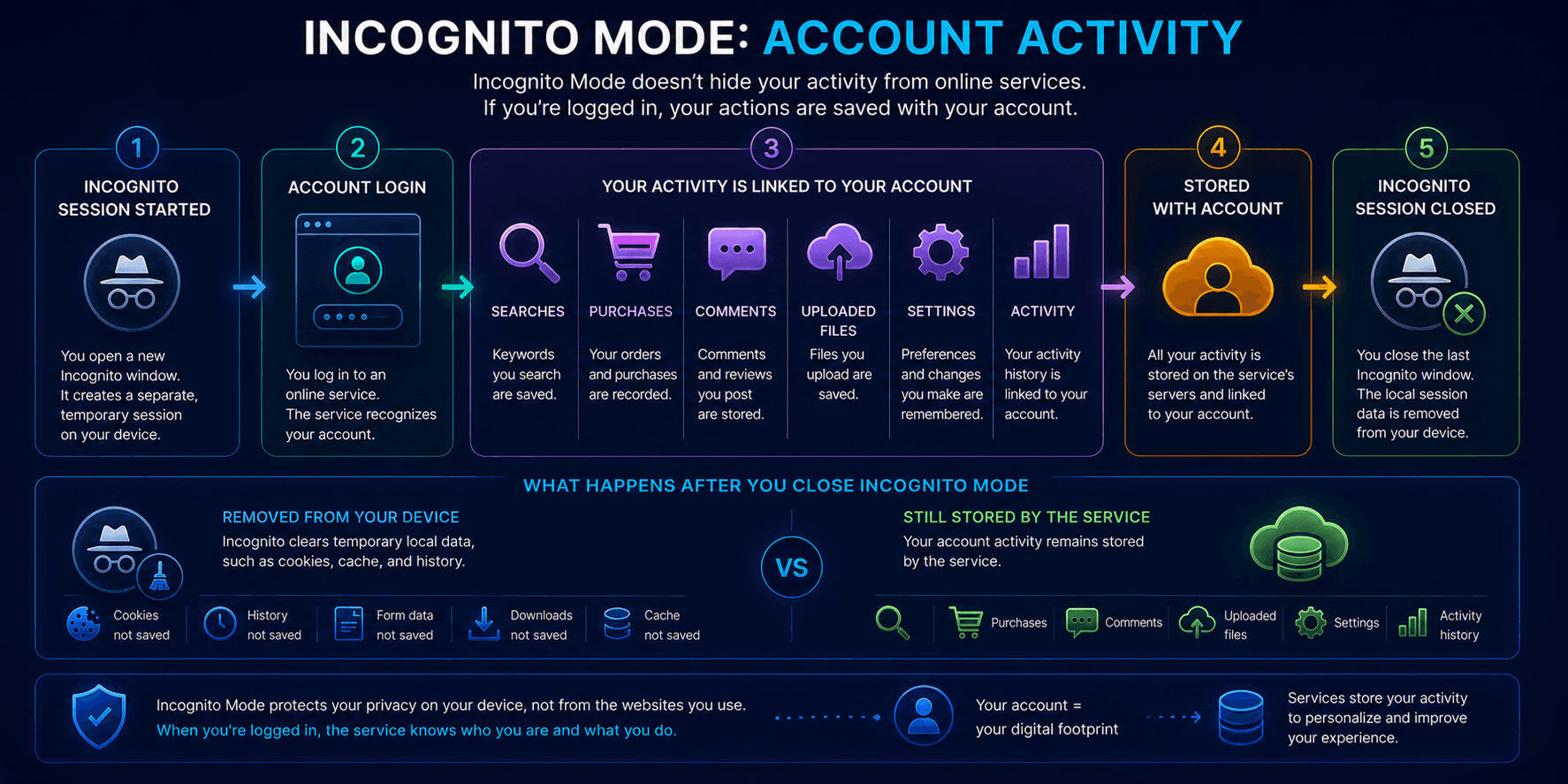
What Happens If You Sign In to an Account?
Incognito Mode does not prevent a service from knowing who you are once you log in.
If you sign in to an account, the website can associate your actions with that account during the session.
This may include:
- searches;
- purchases;
- comments;
- uploaded files;
- account settings;
- session activity.
Closing the Incognito window removes the local session state, but it does not delete activity already stored in the account or on the service’s servers.
This is an important distinction between local privacy and online identity.
When Is Incognito Mode Useful?
Despite its limitations, Incognito Mode is very useful for certain tasks.
For example, it works well when you need to:
- temporarily sign in to a second account;
- use a shared or borrowed computer;
- open a website without existing Cookies;
- test how a site behaves for a fresh session;
- open a link without affecting your main browser session;
- compare logged-in and logged-out behavior.
For short-term isolated browsing, Incognito Mode is usually sufficient.
Incognito Mode vs Isolated Browser Profiles
Incognito Mode is temporary by design.
Once the last Incognito window is closed, the local session data is removed.
This becomes inconvenient if you need persistent independent browser environments.
In WadeX, each browser profile uses its own isolated local environment.
That means different profiles can maintain separate:
- Cookies;
- Local Storage;
- Session Storage;
- Browser Cache.
The data remains associated with the profile between launches instead of being deleted after every session.
The distinction is simple:
- Incognito Mode — temporary isolated session;
- WadeX profile — persistent isolated browser environment.
This does not make a profile automatically anonymous or undetectable. It simply separates local browser state between profiles.
| Parameter | Incognito Mode | Isolated Browser Profile |
|---|---|---|
| Storage | Temporary Storage | Separate Persistent Storage |
| Cookies | Temporary Cookies | Separate persistent Cookies for each profile |
| Local Storage | Temporary Local Storage | Separate persistent Local Storage for each profile |
| Session Storage | Temporary Session Storage | Separate Session Storage for each profile |
| Cache | Temporary Cache | Separate persistent Cache for each profile |
| After Closing | Data Removed | Data Preserved Between Launches |
| Environment | Temporary isolated session | Profile A / B / C with separate persistent browser state |
When Do You Need a VPN?
If the goal is network privacy, Incognito Mode alone is not enough.
A VPN is useful when you want to change or protect network-level information.
For example, WhoVPN can:
- replace the original public IP with the VPN server’s IP;
- route supported traffic through an encrypted tunnel;
- handle DNS according to the VPN configuration;
- improve privacy on public Wi-Fi and other untrusted networks.
A VPN does not replace Incognito Mode, and Incognito Mode does not replace a VPN.
They operate at different layers.
Incognito Mode controls what browser data is retained locally.
A VPN changes how network traffic travels between the device and the VPN server.
Incognito Mode vs VPN vs Browser Profile
The differences become clearer when the three approaches are compared directly.
| Feature | Incognito Mode | VPN | Isolated Browser Profile |
|---|---|---|---|
| Hides local browsing history after session | Yes | No | No |
| Uses temporary Cookies | Yes | No | No |
| Changes public IP | No | Yes | Depends on network setup |
| Encrypts traffic to VPN server | No | Yes | No |
| Changes Browser Fingerprint automatically | No | No | Depends on profile configuration |
| Keeps separate browser storage | Temporarily | No | Yes |
| Preserves session between launches | No | Not applicable | Yes |
Each tool solves a different problem.
How to Check What Websites Can Still See
One of the easiest ways to understand Incognito Mode is to compare a regular browser session with an Incognito session.
You can open an Incognito window and inspect what websites can still detect.
A diagnostic service such as Whoer.net can show information including:
- public IP address;
- DNS configuration;
- WebRTC-related information;
- IPv6;
- Browser Fingerprint characteristics.
This demonstrates the central limitation of Incognito Mode: local browser history may disappear after the session, while network and browser-level information remains visible during the session.
Conclusion
Incognito Mode does not make a user invisible or anonymous online.
Its main purpose is to create a temporary isolated browser session and reduce the amount of browsing data left on the local device.
While the session is active, websites can still use Cookies, Local Storage, Session Storage, Cache, analytics scripts, and Browser Fingerprinting. They can also see network-level information such as the public IP address.
If the goal is simply to avoid leaving browsing history and session data on a shared device, Incognito Mode is often enough.
If the goal is to change the visible IP address or protect network traffic, a VPN addresses that layer.
If the goal is to maintain several persistent and separate browser environments, isolated browser profiles are more appropriate.
The important point is that Incognito Mode, VPNs, and browser profiles are not substitutes for one another. They solve different privacy and session-management problems.