STREAMING
How to Check if Your VPN Really Works
How to check if your VPN really works (full checklist)
Many people connect to a VPN, see the "Connected" status, and assume everything is working correctly.
Unfortunately, that is not always true.
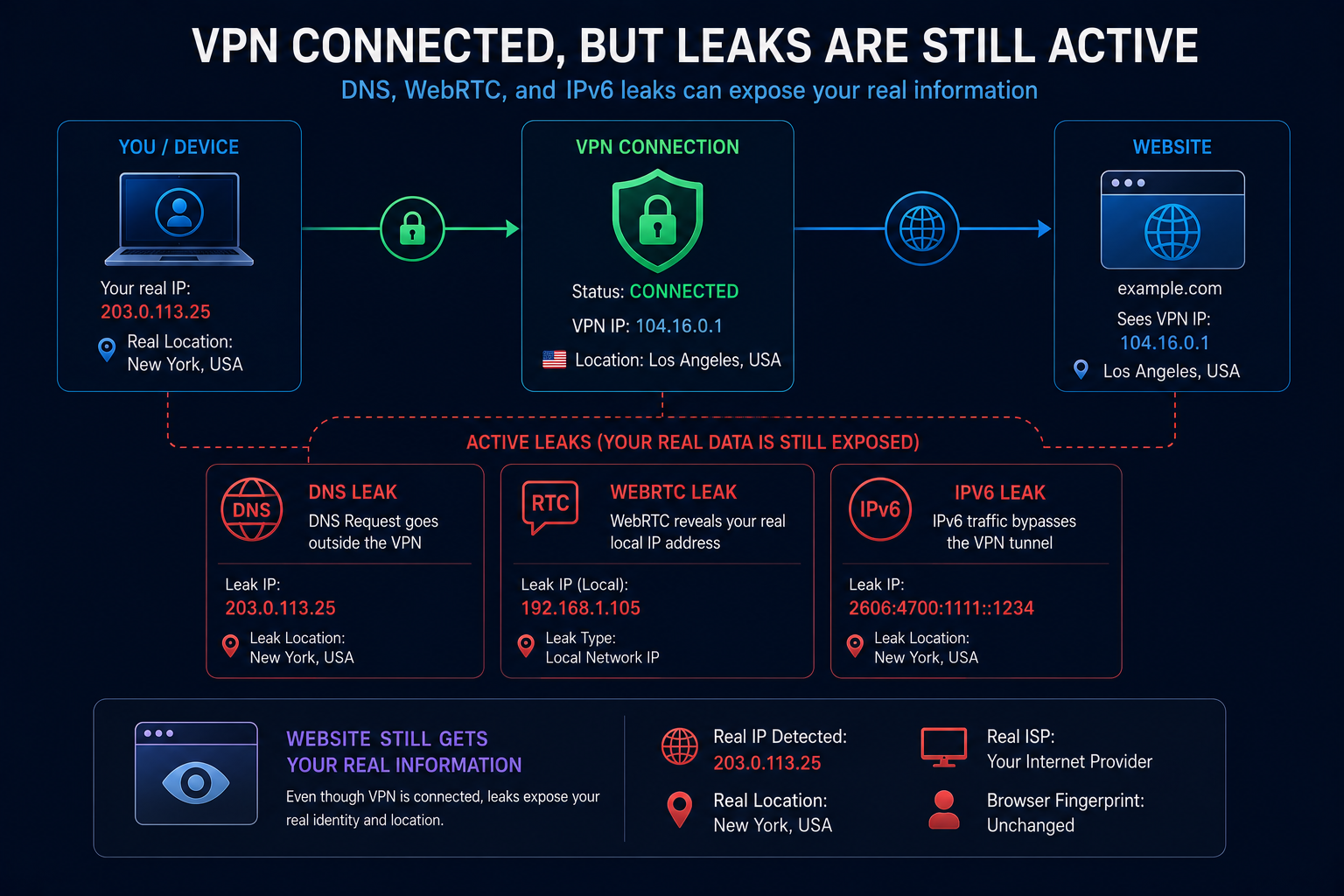
A VPN can appear connected while still exposing:
- your real IP address;
- DNS requests;
- WebRTC information;
- IPv6 traffic;
- location-related data.
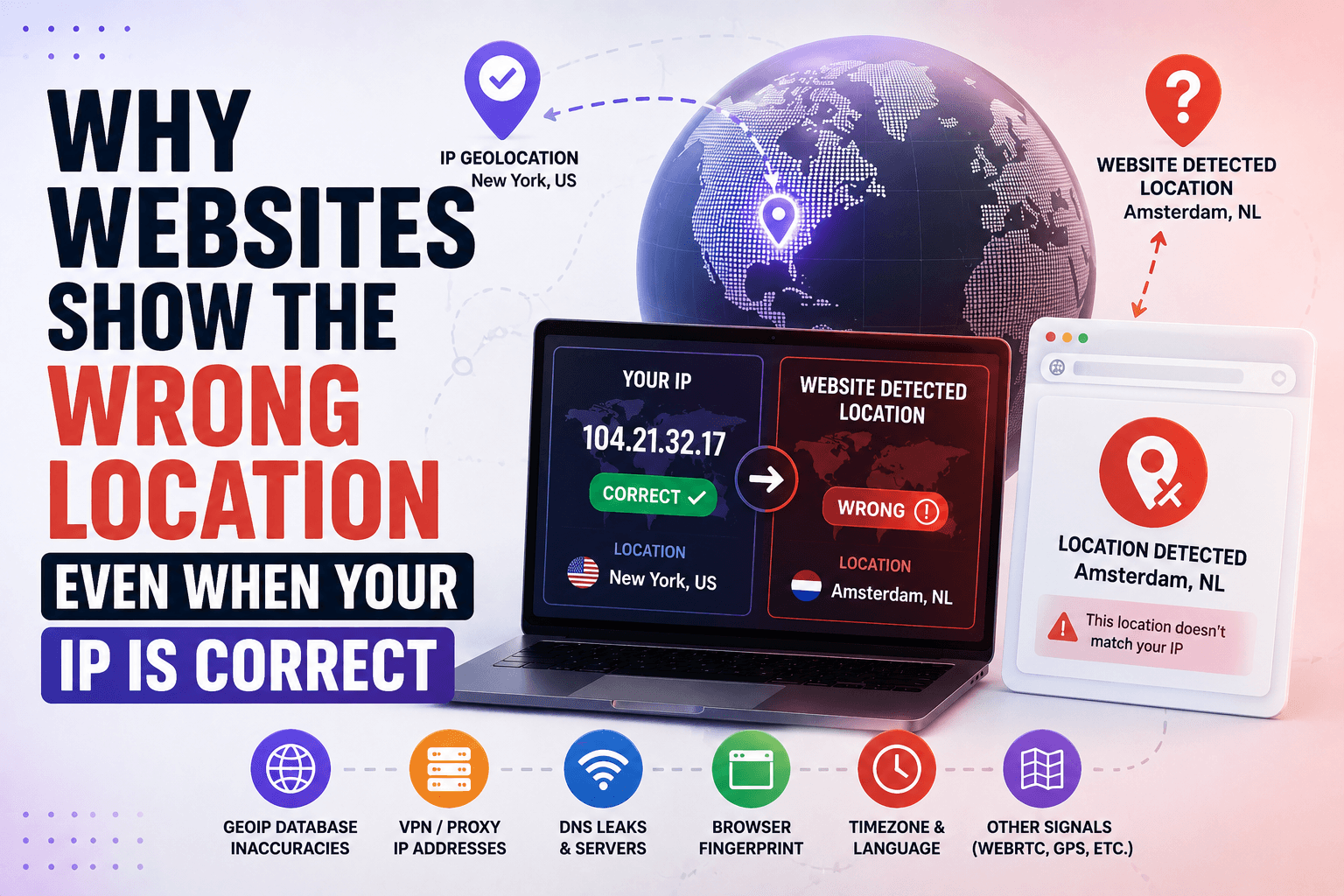
In some cases, websites can still determine your real location even though a VPN is active.
That is why simply connecting to a VPN is not enough.
You should verify that it actually hides the information you expect.
This guide covers the full VPN verification checklist for 2026.
Step 1: Check your public IP address
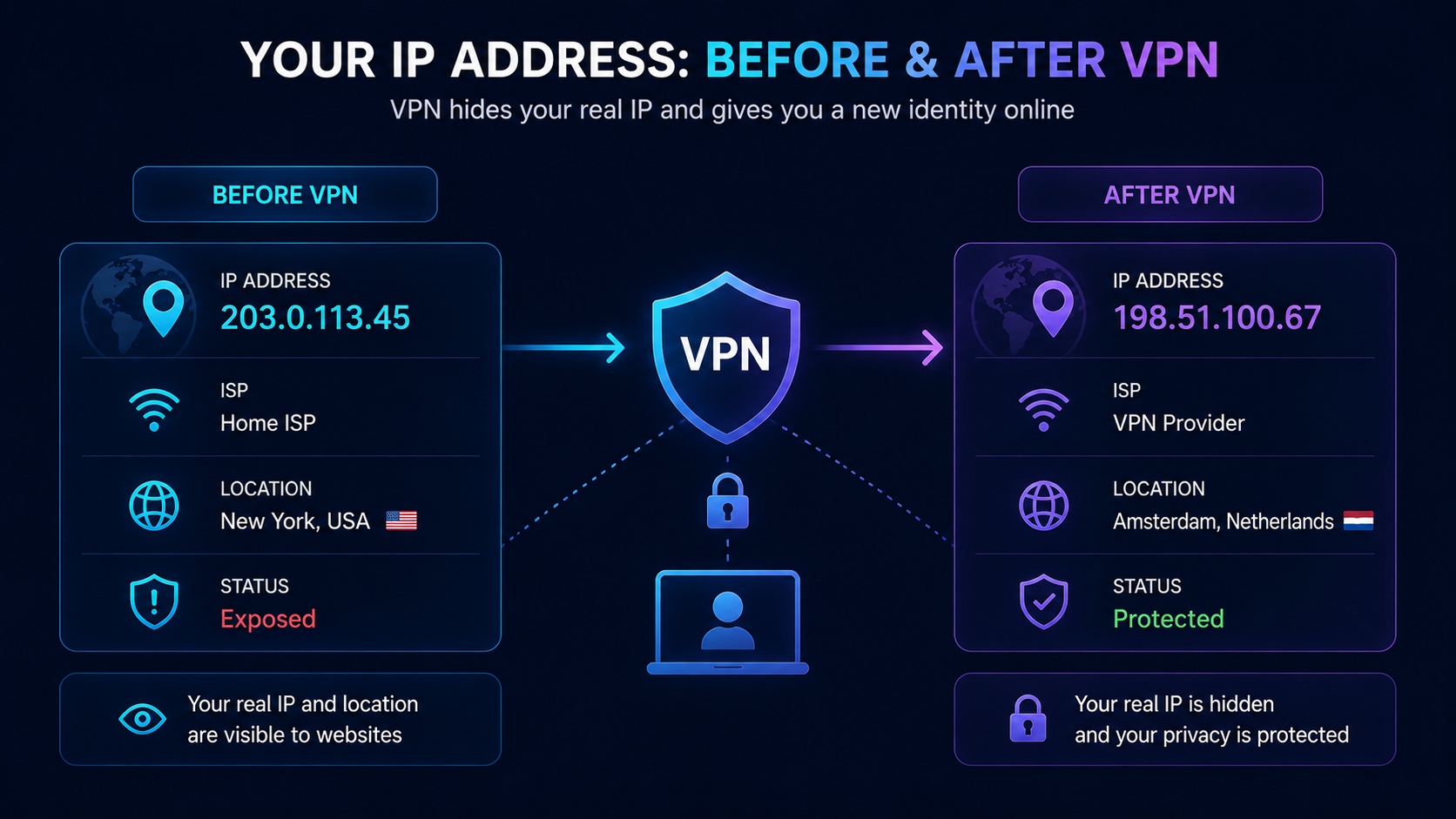
The first thing to verify is your visible IP address.
Without VPN:
- websites see your real IP;
- your ISP is visible;
- your approximate location is visible.
After connecting to VPN:
- IP should change;
- ISP should change;
- location should match the VPN server.
The easiest way is to use Whoer.
Check:
- IP address;
- country;
- city;
- ISP name.
If these values still show your real connection, the VPN is not working correctly.
Step 2: Check for DNS leaks
Many users overlook DNS.
Even when your IP changes, DNS requests may still go directly through your internet provider.
This means websites and networks can still see what domains you visit.
A proper VPN should route DNS traffic through secure VPN DNS servers.
Check:
- DNS server location;
- DNS provider;
- DNS consistency with VPN location.
Red flags:
- your ISP appears in DNS results;
- DNS servers remain in your real country;
- DNS requests bypass VPN entirely.
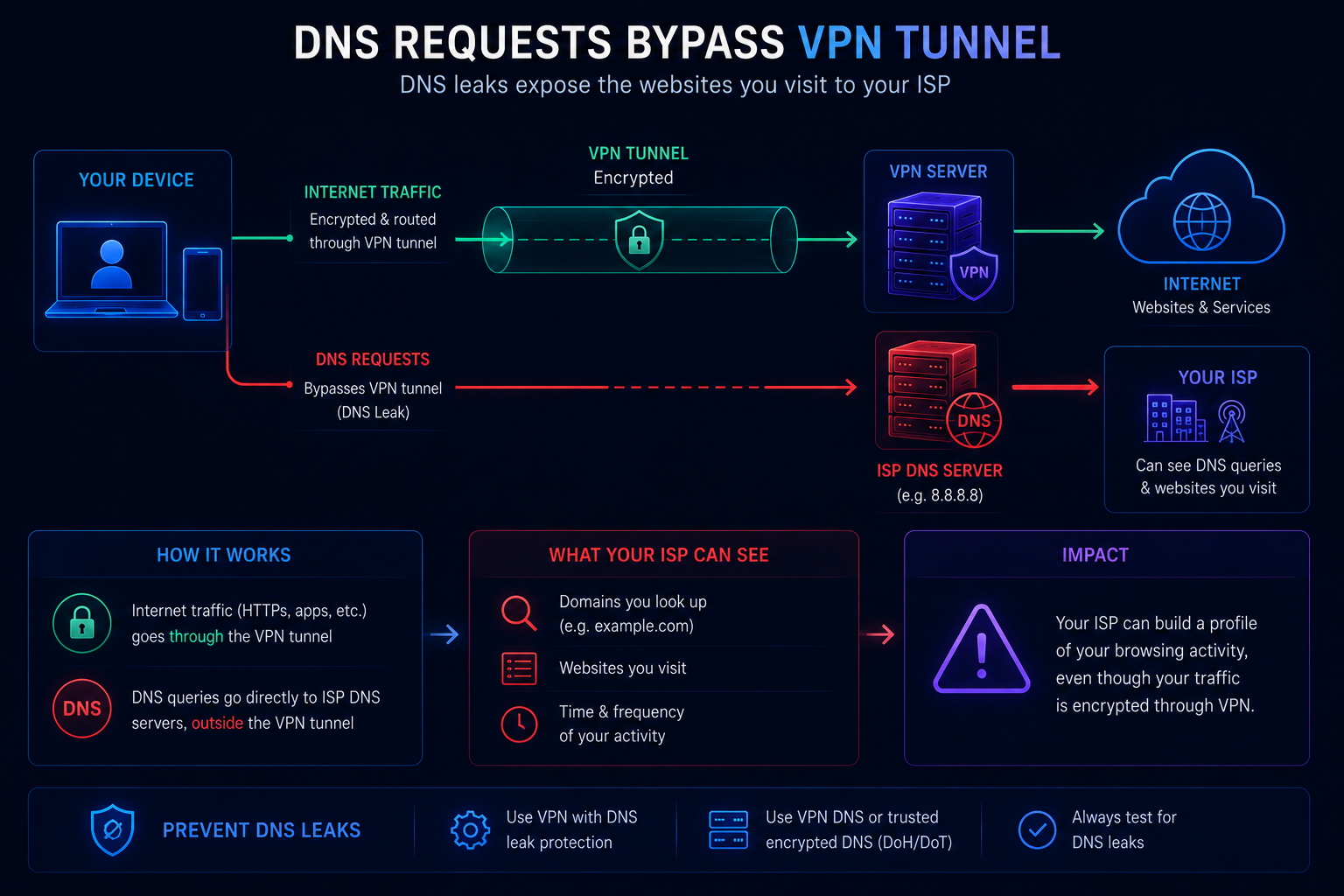
DNS leaks are one of the most common VPN configuration problems.
Step 3: Check for WebRTC leaks
WebRTC is a browser technology used for:
- voice calls;
- video calls;
- peer-to-peer communication.
Unfortunately, WebRTC can sometimes expose network information.
This may include:
- local IP address;
- network interfaces;
- VPN-related details.
Even if the VPN itself works correctly.
Whoer can help identify WebRTC leaks and show what information websites may still receive.
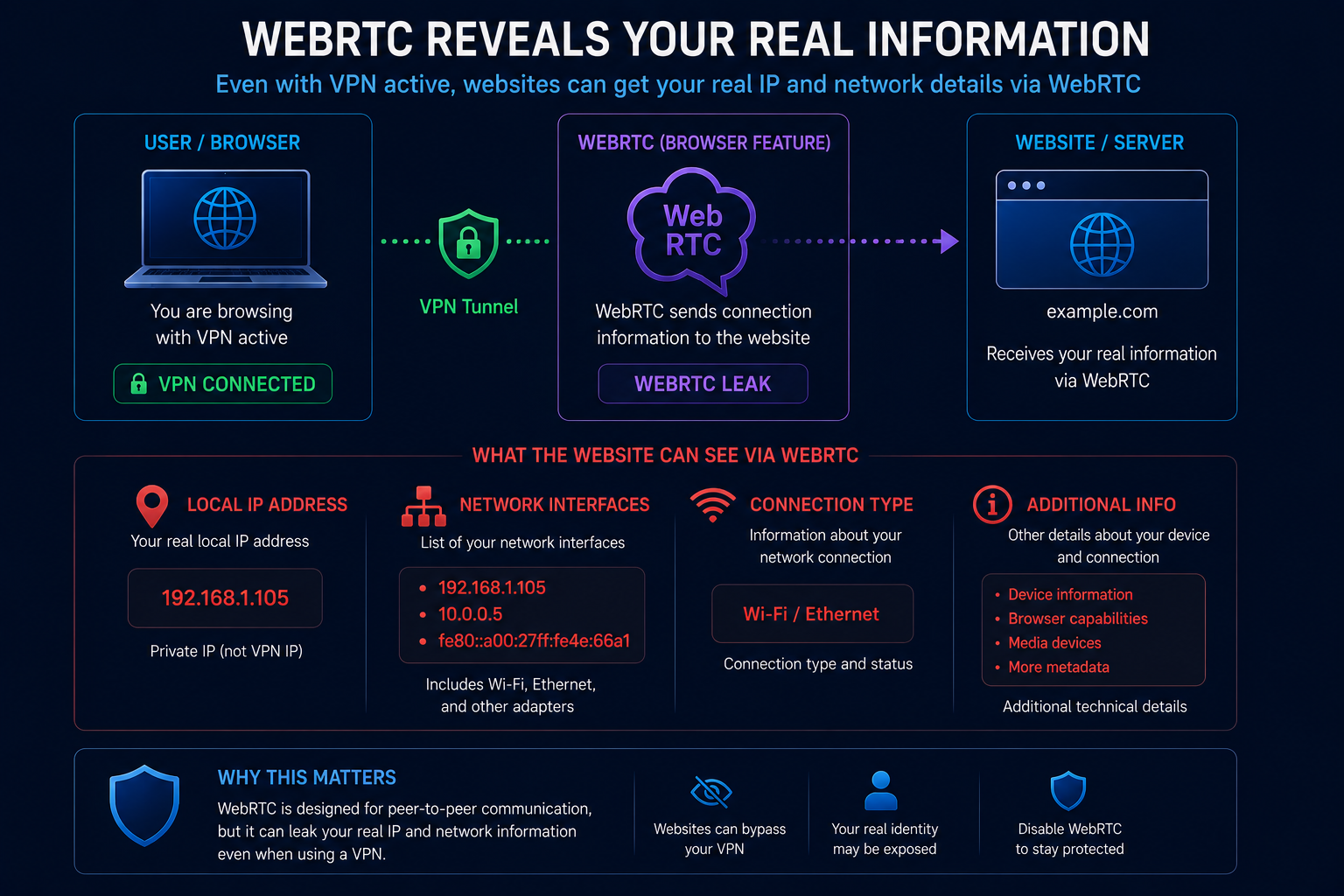
This issue is especially common in Chromium-based browsers.
Step 4: Check IPv6 traffic
Many VPN providers still focus primarily on IPv4.
However, modern networks increasingly support IPv6.
If IPv6 traffic bypasses the VPN tunnel, websites may still discover:
- your real ISP;
- your approximate location;
- your network identity.
Check whether:
- IPv6 is disabled;
- IPv6 is protected;
- IPv6 traffic goes through VPN.
A VPN that only protects IPv4 is not providing full protection.
Step 5: Verify VPN location consistency
Modern websites rarely rely on a single signal.
They compare:
- IP address;
- timezone;
- browser language;
- DNS location;
- browser fingerprint.
For example:
Suspicious:
- German IP;
- Russian timezone;
- French DNS;
- English browser locale.
This combination may trigger anti-fraud systems.
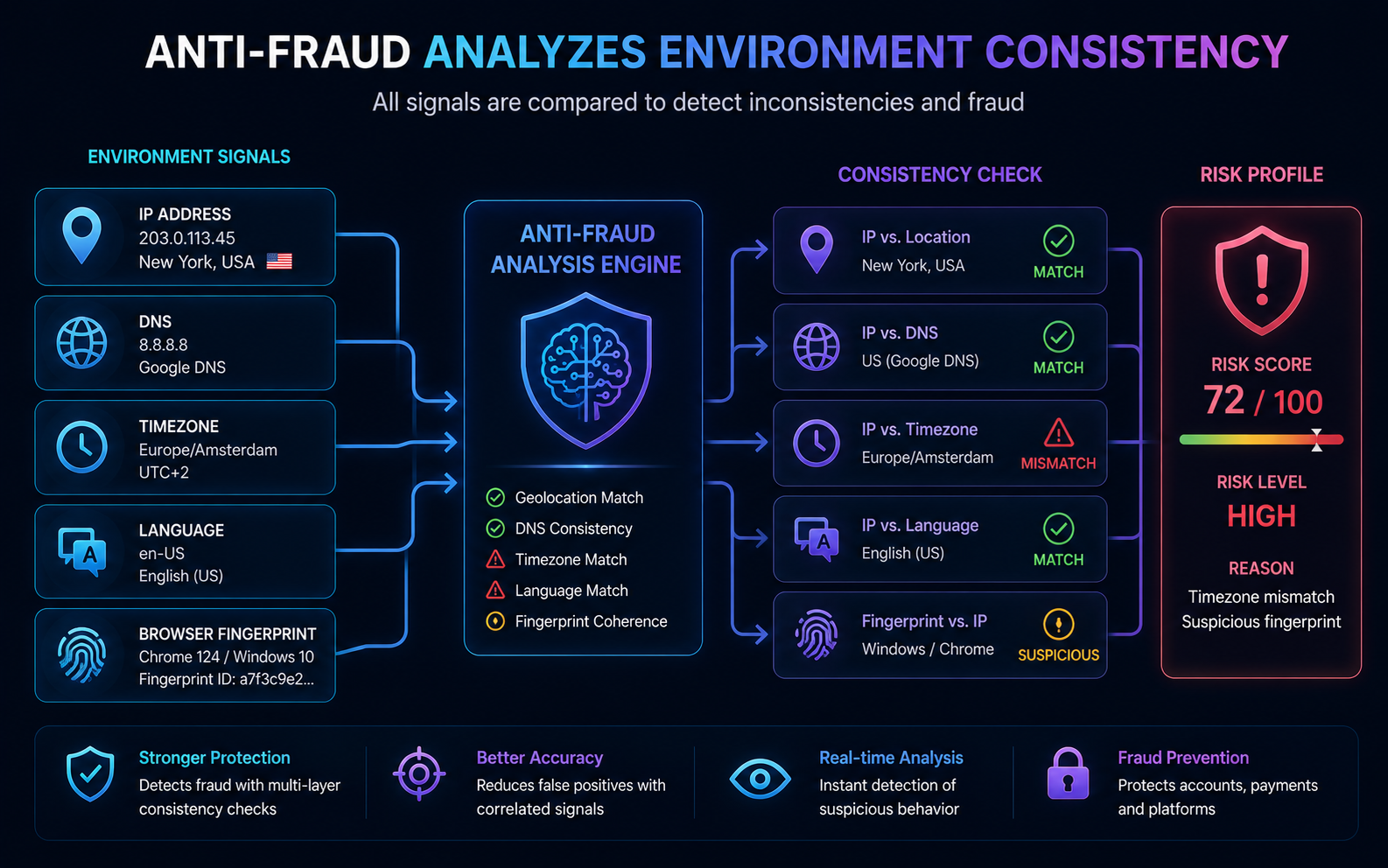
The environment should look consistent.
Step 6: Test streaming and geo-blocking
A VPN can technically work while still failing at geo-unblocking.
Some streaming platforms actively detect VPN traffic.
Popular examples:
- Netflix;
- Disney+;
- Hulu;
- BBC iPlayer.
A useful test is checking whether region-specific content actually changes after connecting.
If the catalog remains identical, the service may still recognize VPN usage.
Step 7: Check VPN speed
Privacy is important.
But performance matters too.
Measure:
- download speed;
- upload speed;
- latency;
- packet loss.
Small speed reductions are normal.
Warning signs include:
- extremely slow downloads;
- unstable connections;
- frequent disconnects;
- large latency spikes.
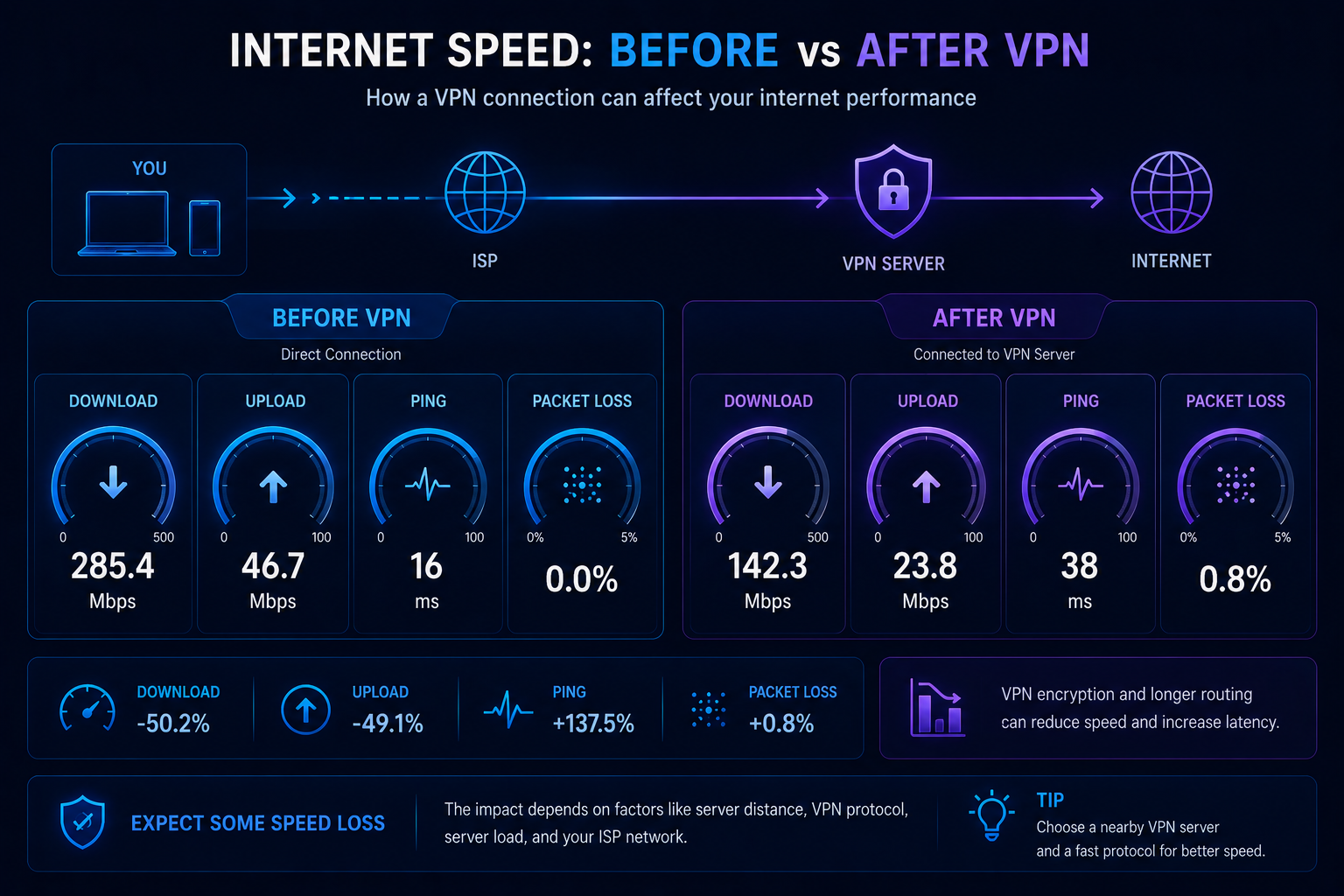
A VPN should be usable, not just secure.
Step 8: Verify kill switch functionality
A Kill Switch prevents accidental IP exposure if the VPN disconnects.
Without it:
- VPN drops;
- device reconnects normally;
- real IP becomes visible.
With Kill Switch:
- internet access stops until VPN reconnects.
This feature is especially important for:
- torrenting;
- remote work;
- privacy-sensitive activities.
Step 9: Check what websites actually see
The most practical test is simple:
Open an IP-check service and view your connection from the perspective of a website.
Whoer can show:
- IP address;
- ISP;
- DNS;
- WebRTC;
- browser details;
- geolocation information.
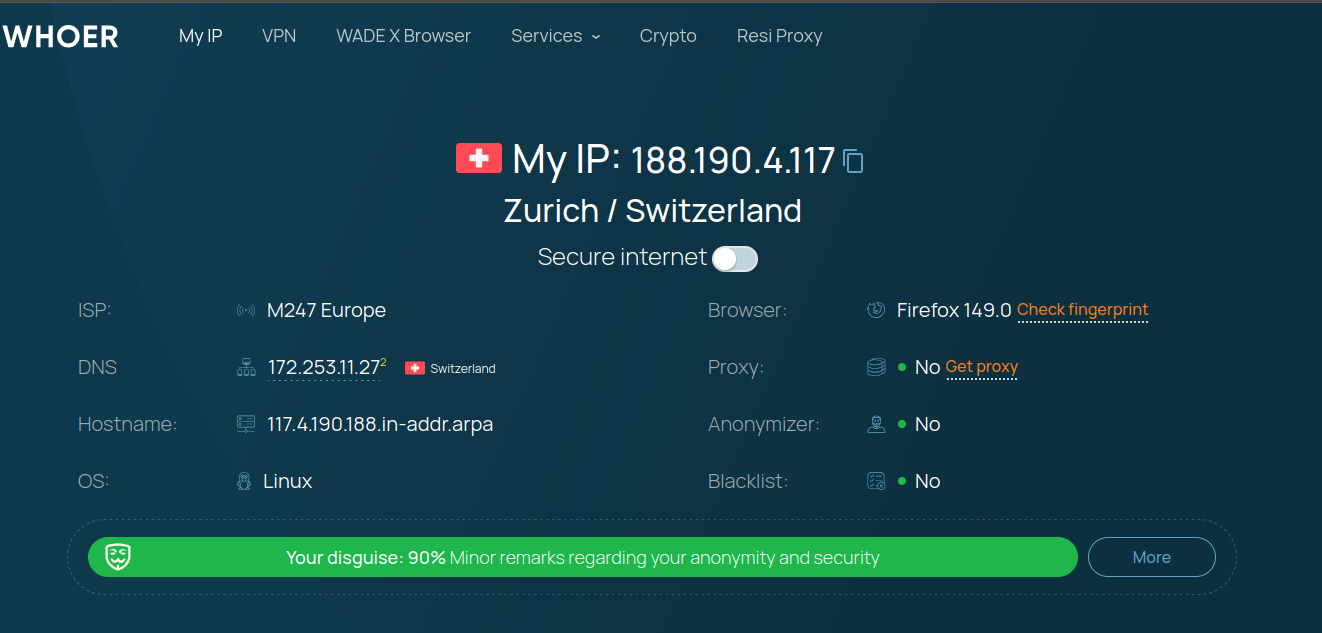
This gives a realistic picture of what websites receive about your connection.
Common VPN mistakes
Many VPN issues are caused by configuration errors.
Typical examples:
- VPN connected but DNS leaks remain;
- WebRTC enabled;
- IPv6 unprotected;
- browser location services active;
- VPN server blocked by streaming platforms;
- poor-quality free VPN providers.
In many cases the VPN itself works correctly.
The surrounding environment is what leaks information.
What should a good VPN protect in 2026?
A modern VPN should cover:
- IP address masking;
- DNS protection;
- WebRTC leak prevention;
- IPv6 protection;
- Kill Switch support;
- reliable geo-block bypassing.
Services like WhoX VPN combine multiple protocols and leak protection mechanisms, but regardless of provider, verification should always be part of your setup process.
Trusting the "Connected" button is not enough anymore.
Full VPN checklist
Before assuming your VPN works correctly, verify:
✅ IP address changed
✅ ISP changed
✅ DNS requests protected
✅ No WebRTC leaks
✅ IPv6 protected
✅ Location looks consistent
✅ Streaming services work
✅ Speed remains acceptable
✅ Kill Switch enabled
✅ Privacy tests show expected results
If all boxes are checked, your VPN setup is likely working as intended.
FAQ
Why does my IP change but websites still know my location?
Because websites may use DNS, WebRTC, browser settings, and other signals in addition to IP address.
Are DNS leaks dangerous?
They can reveal the websites you visit and sometimes expose your real ISP even when using a VPN.
How often should I test my VPN?
Ideally after:
- installing a VPN;
- changing devices;
- updating browsers;
- switching VPN protocols;
- changing VPN providers.