What Is a Router IP Address? How to Find and Use It
Learn what a router IP address is, how it differs from your public IP address, where to find it on any device, and how it's used to manage your home network.

Paul Jackson
Technology editor
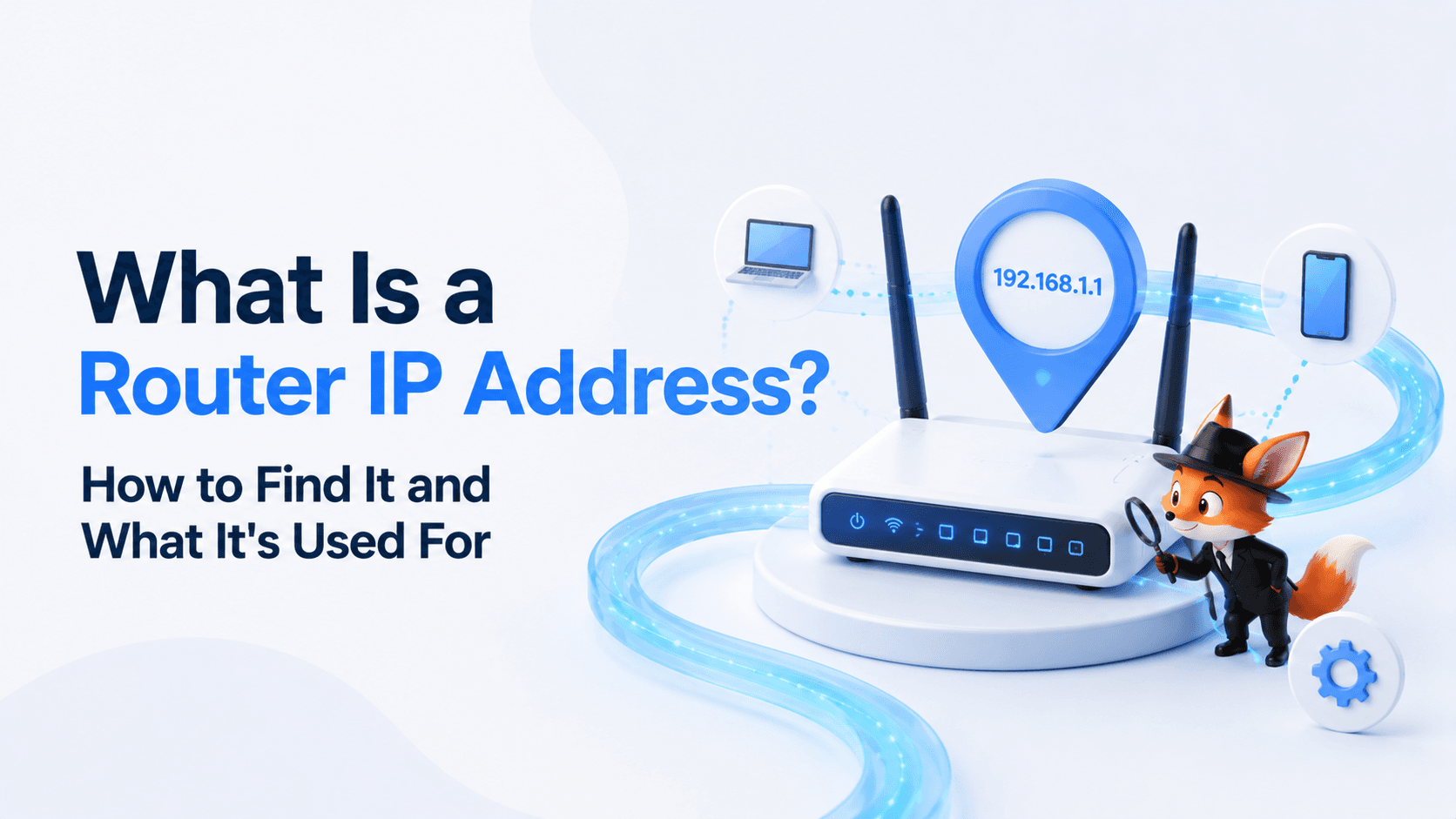
Almost every home network has a router, and every router has its own IP address.
This address isn’t used to browse the internet. Instead, it gives you access to the router’s administration panel, where you can change Wi-Fi settings, configure DNS servers, update firmware, or manage security features.
Many people confuse a router’s IP address with their public IP address. Although both are called IP addresses, they serve completely different purposes.
In this guide, you’ll learn what a router IP address is, how it differs from your public IP address, and how to find it on Windows, macOS, Linux, Android, and iPhone.

What Is a Router IP Address?
A router IP address is the local network address assigned to your router.
Every device connected to your home network uses this address as its default gateway, allowing traffic to reach the internet through the router.
Unlike your public IP address, a router IP is only accessible from within your local network.
It’s commonly used to:
- access the router’s web interface;
- change Wi-Fi settings;
- update router firmware;
- configure DNS servers;
- enable VPN or parental controls;
- manage connected devices.
In most home networks, the router acts as the central point through which all internet traffic passes.
Router IP Address vs Public IP Address
One of the most common misconceptions is that a router IP address and a public IP address are the same thing.
They are not.

Think of it this way:
- the router IP is the address of your home’s front door;
- the public IP is the address the rest of the internet uses to find your home.
If you want to know which IP websites actually see, you’ll need to check your public IP, not your router’s address.
Common Router IP Addresses
Most manufacturers use private IP ranges defined by networking standards.
Some of the most common default router IP addresses are:
- 192.168.1.1
- 192.168.0.1
- 192.168.100.1
- 10.0.0.1
- 192.168.8.1
These are only default values.
Your router may use a different address if it has been reconfigured or if your network administrator changed the default settings.
How to Find Your Router’s IP Address
The exact steps depend on your operating system, but the process is usually straightforward.
Windows
The fastest method is using Command Prompt.
- Open Command Prompt.
- Run:
ipconfig
- Find the line labeled Default Gateway.
The displayed address is your router’s IP.
macOS
Open:
System Settings → Network → Wi-Fi (or Ethernet) → Details → TCP/IP
The Router field displays your router’s IP address.
Advanced users can also use Terminal:
netstat -nr | grep default
or
route -n get default
Linux
Most Linux distributions provide the router IP through the routing table.
Run:
ip route
or
ip route | grep default
The address following default via is your router’s IP.
Android
Depending on the device manufacturer, the menu names may differ slightly.
Typically, the path is:
Settings → Wi-Fi → Connected Network → Gateway
The value shown as Gateway is the router’s IP address.
iPhone and iPad
On iOS:
- Open Settings.
- Tap Wi-Fi.
- Tap the ⓘ icon next to the connected network.
- Find the Router field.
The displayed address is your router’s IP.
What If the Router IP Doesn’t Open?
If entering the router’s IP address in your browser doesn’t open the administration page, try the following:
- make sure you’re connected to the router’s network;
- verify the IP address using your operating system’s network settings;
- try another browser;
- check whether the router’s default IP has been changed;
- restart the router if necessary.
If none of these steps help, consult your router’s documentation or restore the factory settings if appropriate.
What Can You Do From the Router Settings?
Once you’ve opened the router’s administration panel, you can configure many aspects of your home network.
Common tasks include:
- changing the Wi-Fi name (SSID);
- updating the Wi-Fi password;
- configuring DNS servers;
- installing firmware updates;
- enabling guest networks;
- setting up parental controls;
- configuring VPN features (if supported);
- managing connected devices.
Be careful when changing advanced settings, as incorrect configuration may temporarily disrupt your network connection.
Check Your Public IP Address
Accessing your router tells you how your local network is configured.
It does not tell you what websites see when you connect to the internet.
To check your public IP address, open Whoer.net.
You can also verify:
- DNS servers;
- IPv6 connectivity;
- WebRTC;
- other network parameters.
This helps confirm whether your internet connection is working as expected, especially if you’re using a VPN.
Final Thoughts
A router IP address and a public IP address serve different purposes.
The router’s IP is a private address used to manage your local network, while the public IP identifies your internet connection to websites and online services.
Knowing the difference makes it easier to troubleshoot network problems, configure your router, and understand how devices communicate both inside your home network and across the internet.